Account Settings holds everything about you as a person, not your workspace. Workspace branding, team and billing live under Settings and Billing in the sidebar.
Open Account Settings
- Select your name at the bottom of the sidebar.
- Select Account Settings.
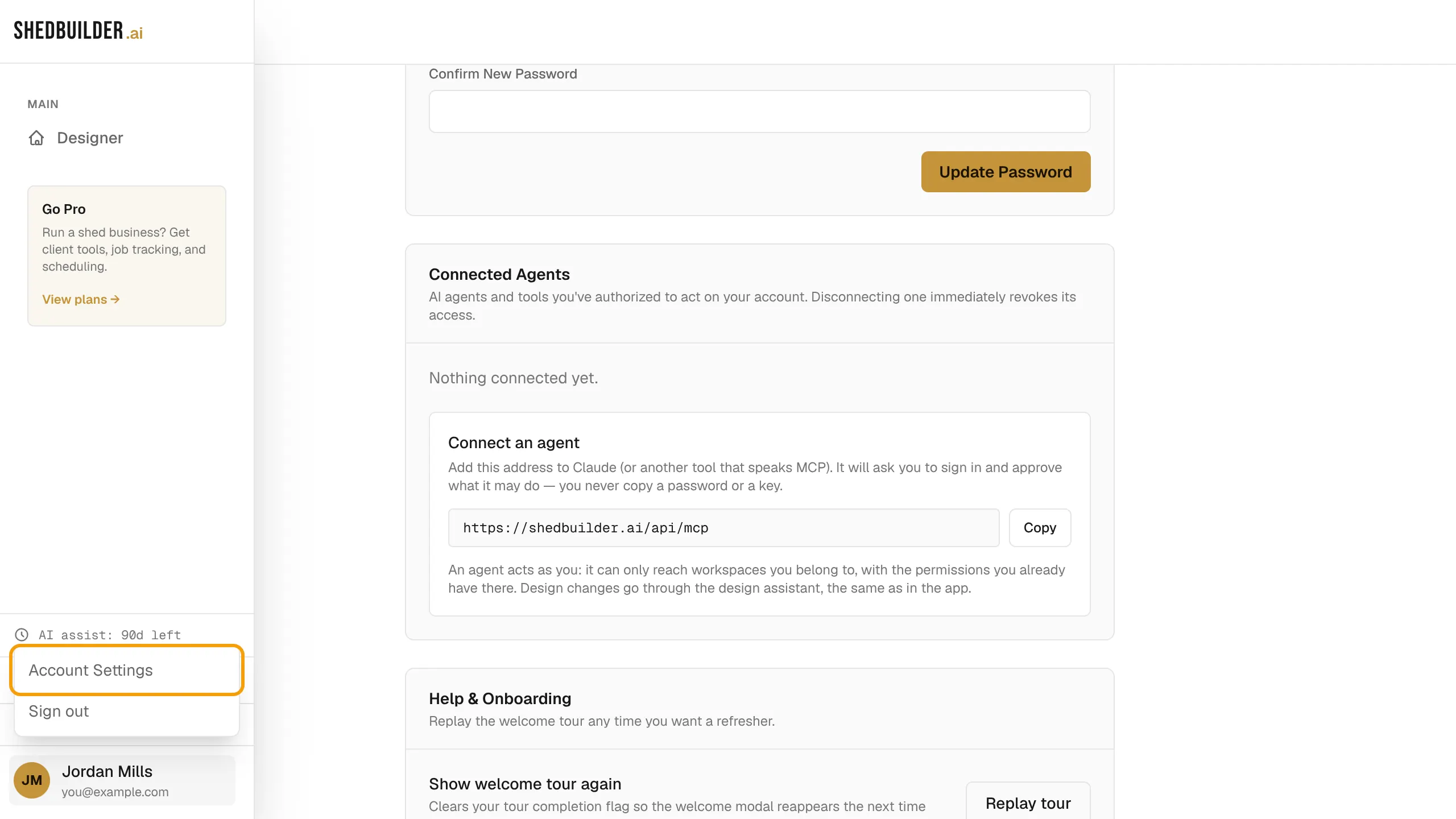
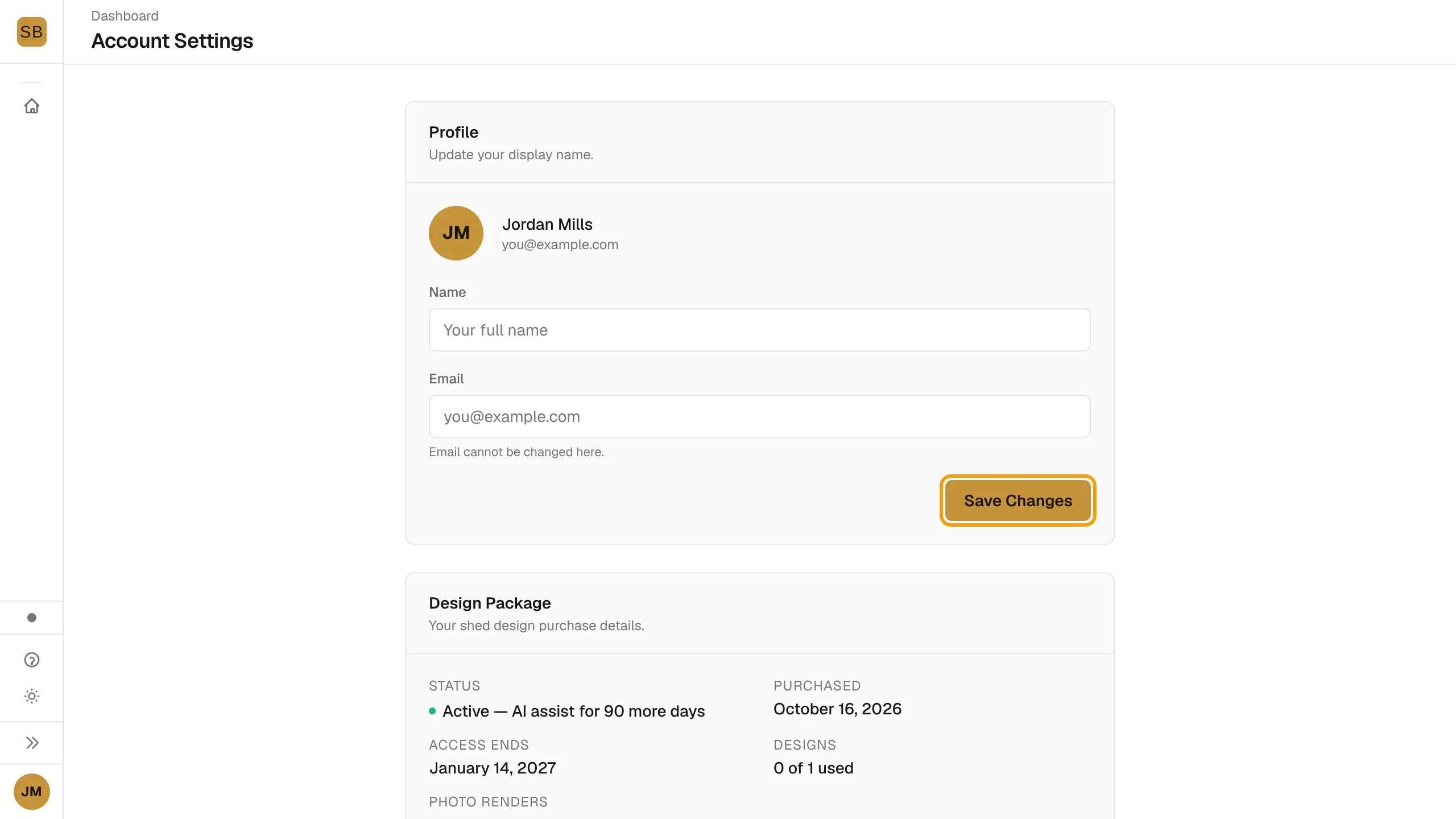
The same menu has Sign out.
Profile and password
- Under Profile, change your Name and select Save Changes. Your Email cannot be changed here.
- Under Password, enter your Current Password, a New Password and Confirm New Password, then select Update Password.
Measurements
Under Measurements, pick Imperial (feet and inches) or Metric (metres and millimetres). This sets how dimensions show to you and how numbers you type are read.
Connect an AI agent
Connected Agents lets a tool that speaks MCP work in the app as you.
- Under Connect an agent, select Copy to copy the address.
- Add the address in your AI tool.
- The tool sends you to a sign-in and consent page. Review what it will be able to do, then select Connect, or Cancel to refuse.
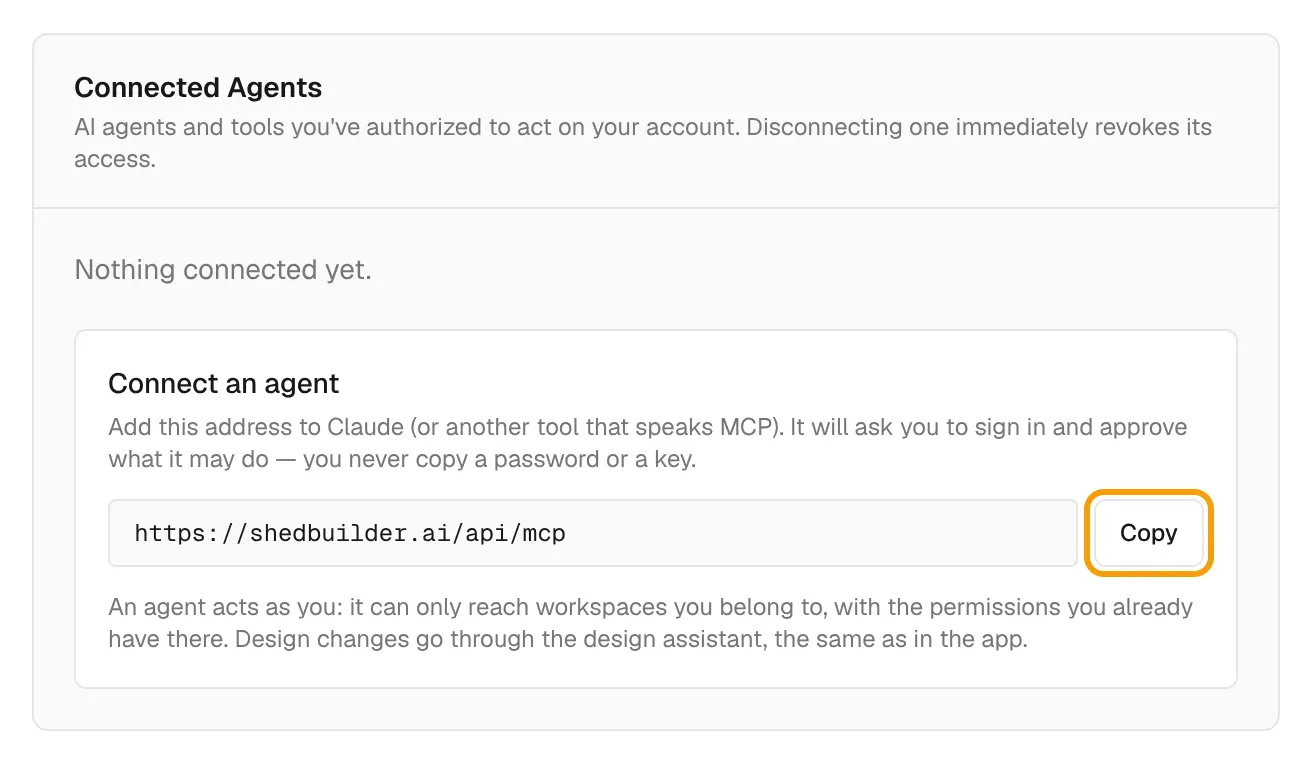
An agent can only reach the workspaces you belong to, with your own permissions. To cut one off, select Disconnect next to it.
Replay the tour
Under Help & Onboarding, select Replay tour. The designer opens and shows the welcome screen again, with the option to take the tour.
Notifications and theme
- Select the bell to see your notifications. Select Mark all read to clear the count.
- Use the theme toggle to switch between light and dark mode.
Delete your account
- Under Danger Zone, select Delete Account.
- Type
deleteand select Delete Account again.
If you bought a DIY design package, its details and receipt also show on this page. See Extend AI assist or go Pro.