There are two kinds of analytics:
- Quote Analytics shows how your quotes perform. It is a Pro feature, also available during a trial.
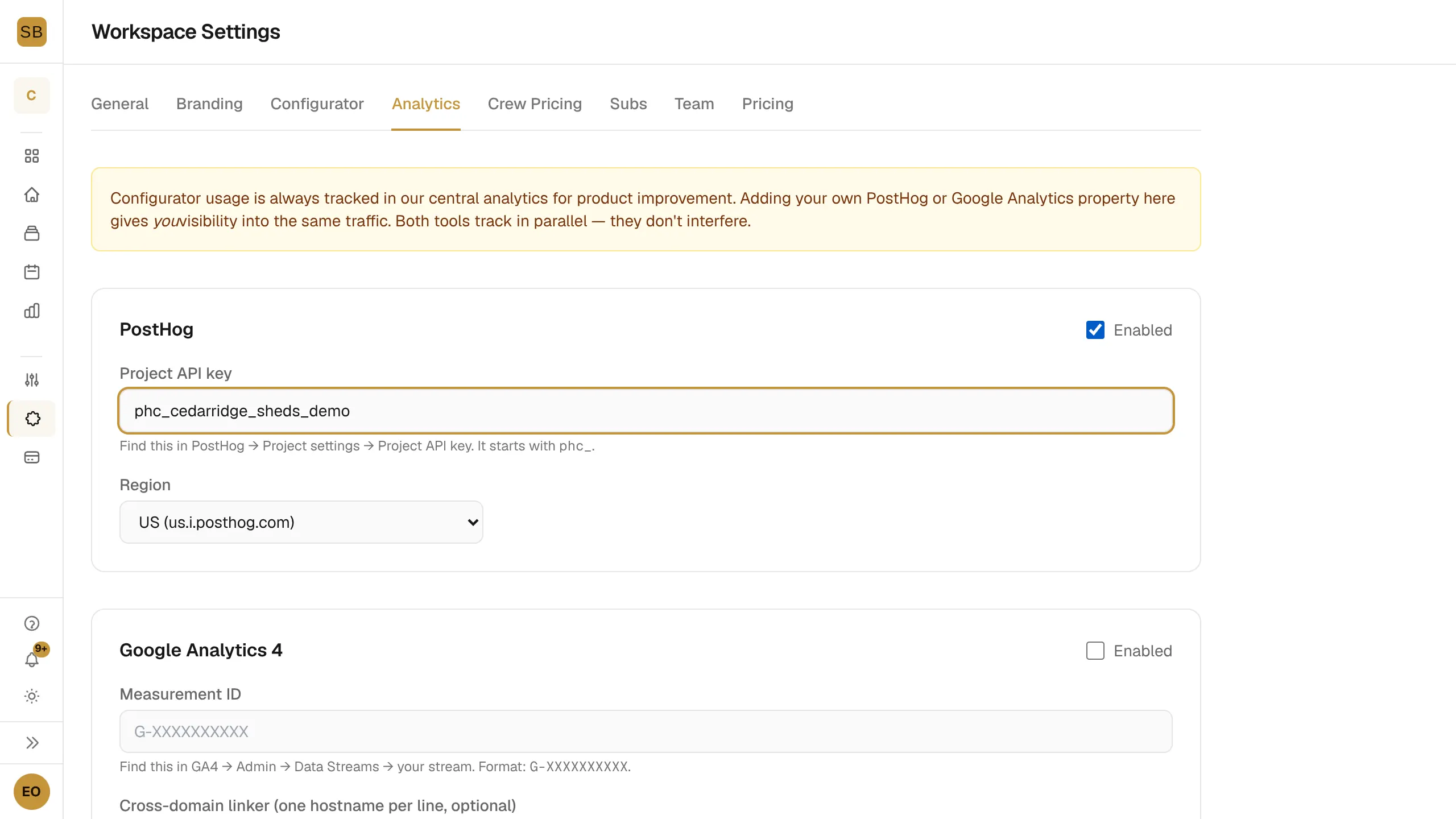
- Settings → Analytics sends your public configurator's traffic to your own PostHog or Google Analytics account. It is on every plan.
Quote Analytics
- Select Analytics in the sidebar.
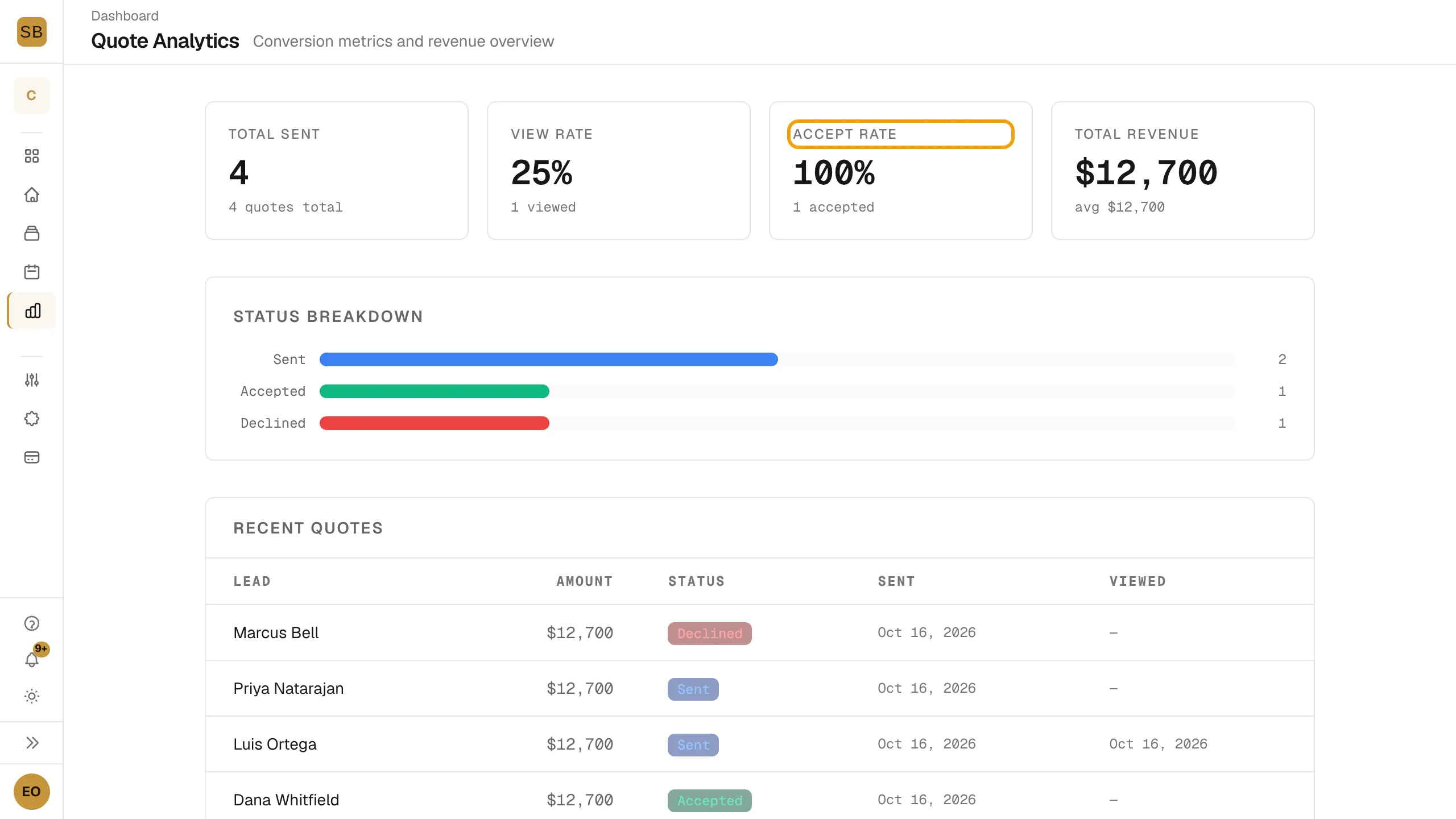
- Read the four totals:
- Total Sent: quotes you have sent.
- View Rate: the share of sent quotes that the customer opened.
- Accept Rate: the share of opened quotes that the customer accepted.
- Total Revenue: the total price of your accepted quotes.
- Status Breakdown shows how many quotes are draft, sent, viewed, accepted, declined or expired.
- Recent Quotes lists your latest quotes with the lead and status.
On the Builder plan, Analytics shows an upgrade card with Upgrade Plan. See Choose a plan and manage billing.
Track configurator visitors
Configurator usage is always tracked in our own analytics. Adding your account gives you the same traffic in your tools. Both run side by side.
PostHog
- Go to Settings → Analytics.
- Under PostHog, tick Enabled.
- Paste your Project API key. It starts with
phc_. - Pick the Region: US or EU.
Google Analytics 4
- Under Google Analytics 4, tick Enabled.
- Enter your Measurement ID, for example
G-XXXXXXXXXX. - If the configurator is embedded on your own site, list your hostnames under Cross-domain linker (one hostname per line, optional).
Select Save Analytics when you're done.