A change order records a change to a signed job and its price. Your customer approves or declines it from a link, and an approved change updates their invoices.
Change orders live on the project's Invoices tab, which appears once the project is Sold. They are on the Builder and Pro plans and during a trial.
Create a change order
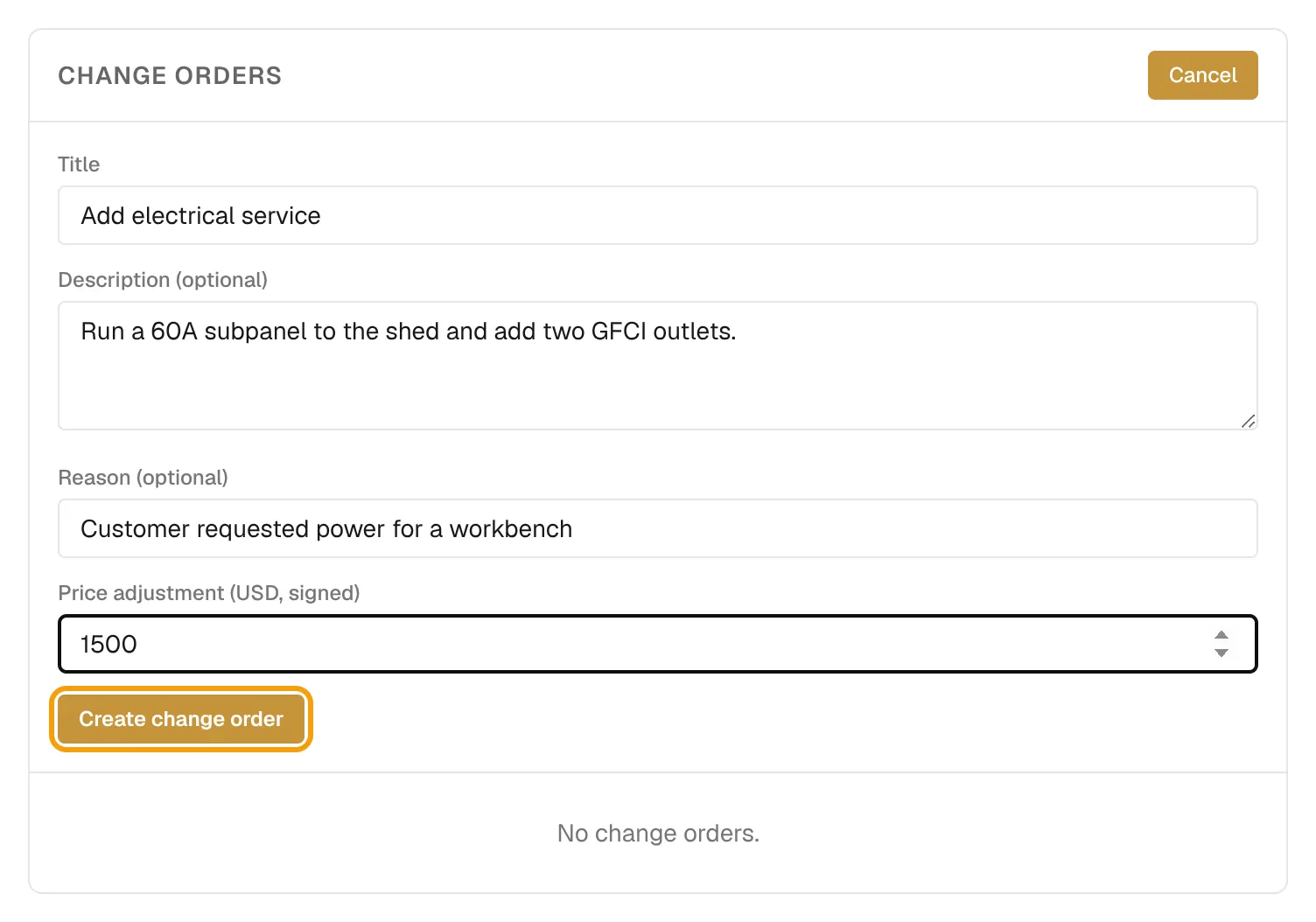
- Open the project and select the Invoices tab.
- Under Change Orders, select + New change order.
- Enter a Title, for example "Add electrical service".
- Add a Description (optional) and a Reason (optional).
- Enter the Price adjustment (USD, signed). Use a positive number for an extra and a negative number for a credit.
- Select Create change order. It is saved as pending.
Send it
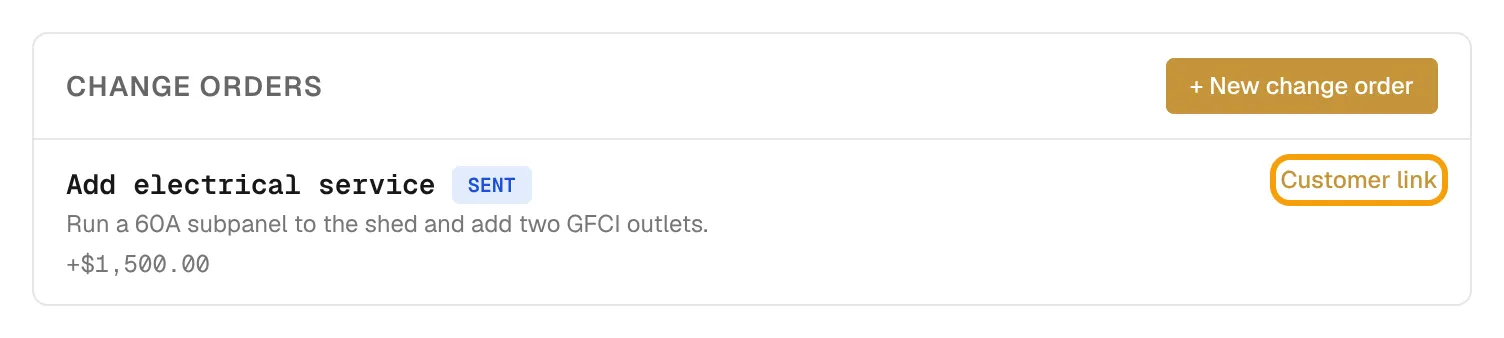
- Select Send next to the change order. Your customer gets an email with a link.
- Use Customer link to open the same page yourself.
The link expires 90 days after you send it.
What your customer does
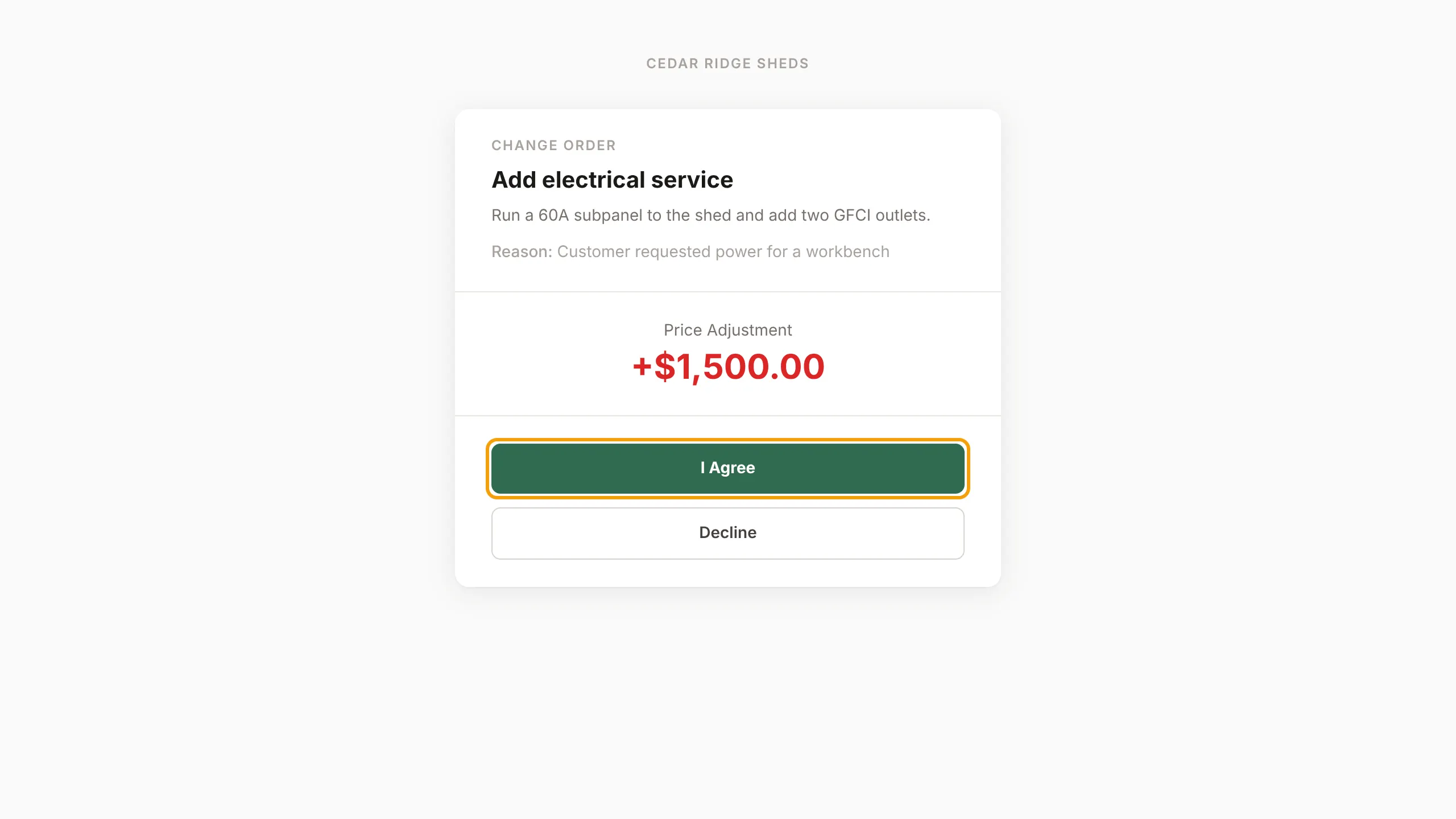
On the change-order page the customer sees the title, reason and Price Adjustment. They select I Agree, or Decline, add an optional reason, and select Confirm Decline.
When they agree:
- An extra is added to the last unpaid invoice. If every invoice is paid, a new draft invoice is created for you to send.
- A credit comes off the unpaid invoices, starting with the last one.
See Send invoices and collect payments.
Set your master contract and cap
- Go to Settings → General → Master Contract & Change-Order Cap.
- Enter your Master Contract URL. Quotes then show it as Exhibit A, and accepting the quote binds both the proposal and the contract.
- Enter a Cumulative change-order cap. It is shown as a term on every quote.
- Select Save Settings.
Only owners and admins can create and send change orders. On a project that came from a bid, the customer link stays locked until you win the bid.