A quote freezes the price of the project's design versions and gives your customer a link to review and sign it. You build it on the project's Quote tab.
Create a quote
- Open the project and select the Quote tab.
- Select Create Quote. The quote is priced from the current design.
- In Quote design versions, check each version's price. Add custom line items with + Add if you need them. Each version is shown to the customer under Package Options, and the default version is marked Recommended.
- To bill two or more versions together, for example a shed and a separate carport, tick In total on each one.
- Under Payment schedule, set the milestones. Use + Milestone to add one. They must total 100%.
- Select Save changes.
- Under Terms & Notes, fill in Scope of work, Exclusions, Payment terms and Estimated duration. Select Save terms.
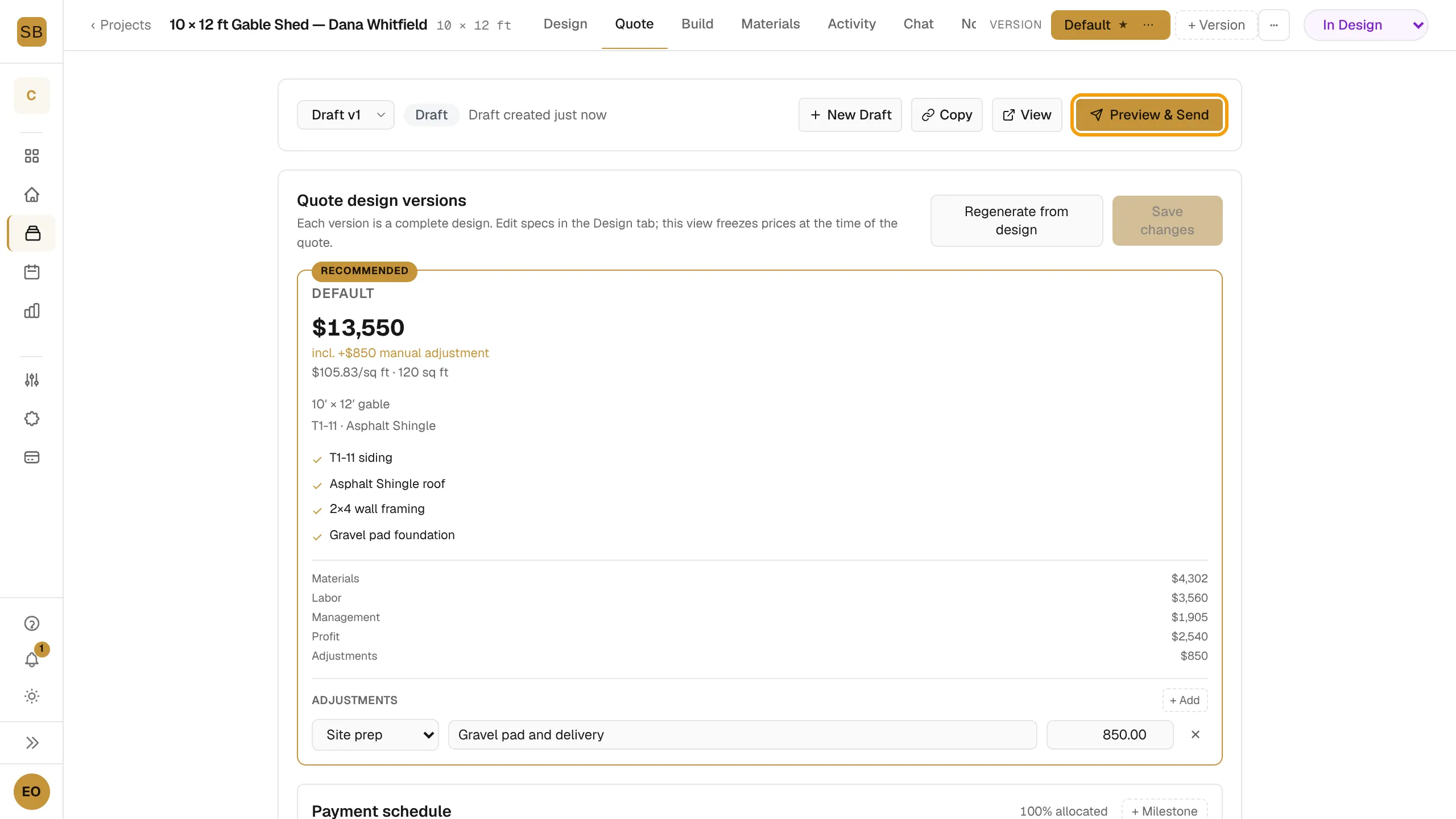
If you change the design afterwards, select Regenerate from design. Custom line items are kept.
Send it
- Select Preview & Send.
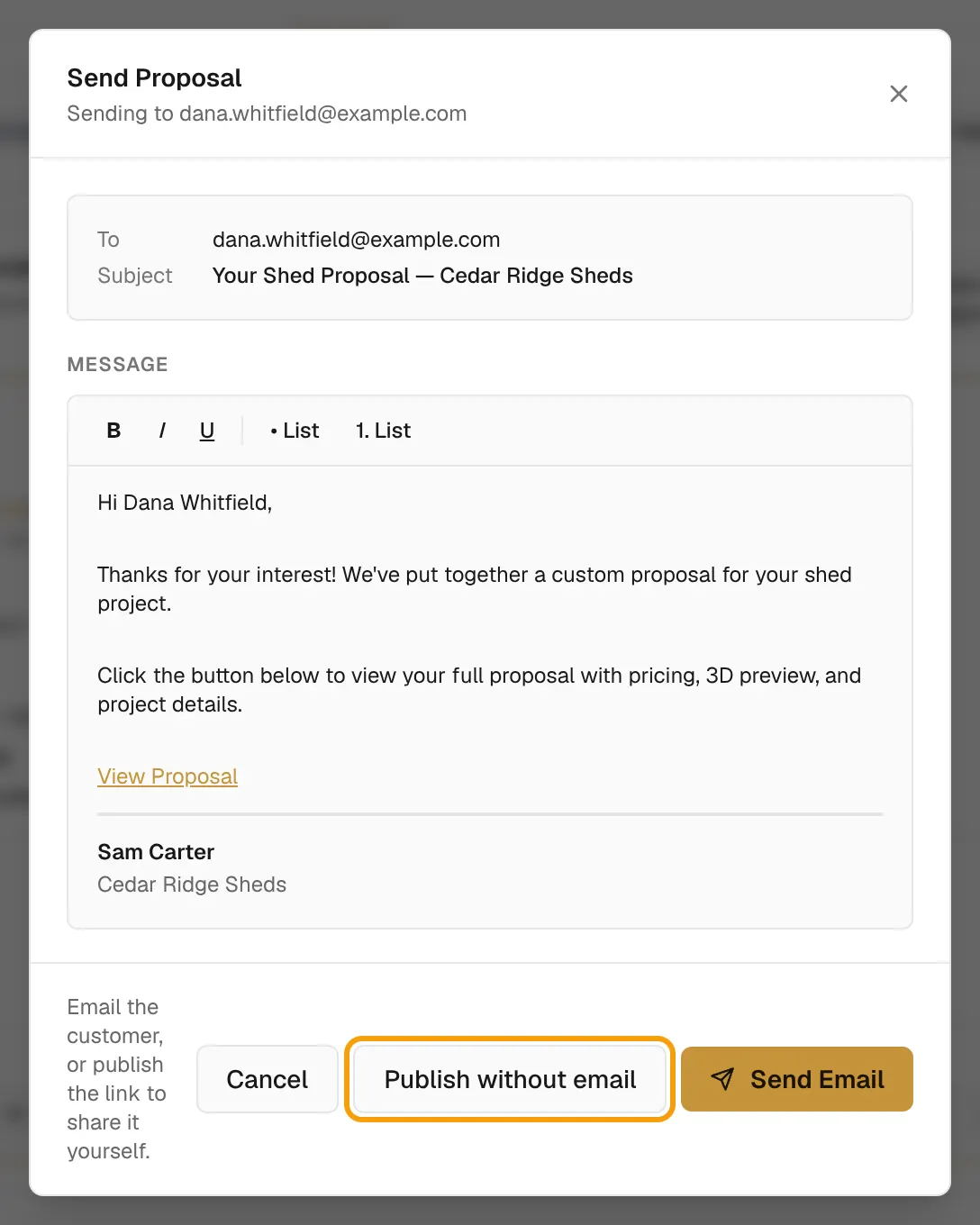
- Check the To and Subject lines and edit the Message.
- Select Send Email, or Publish without email to share the link yourself.
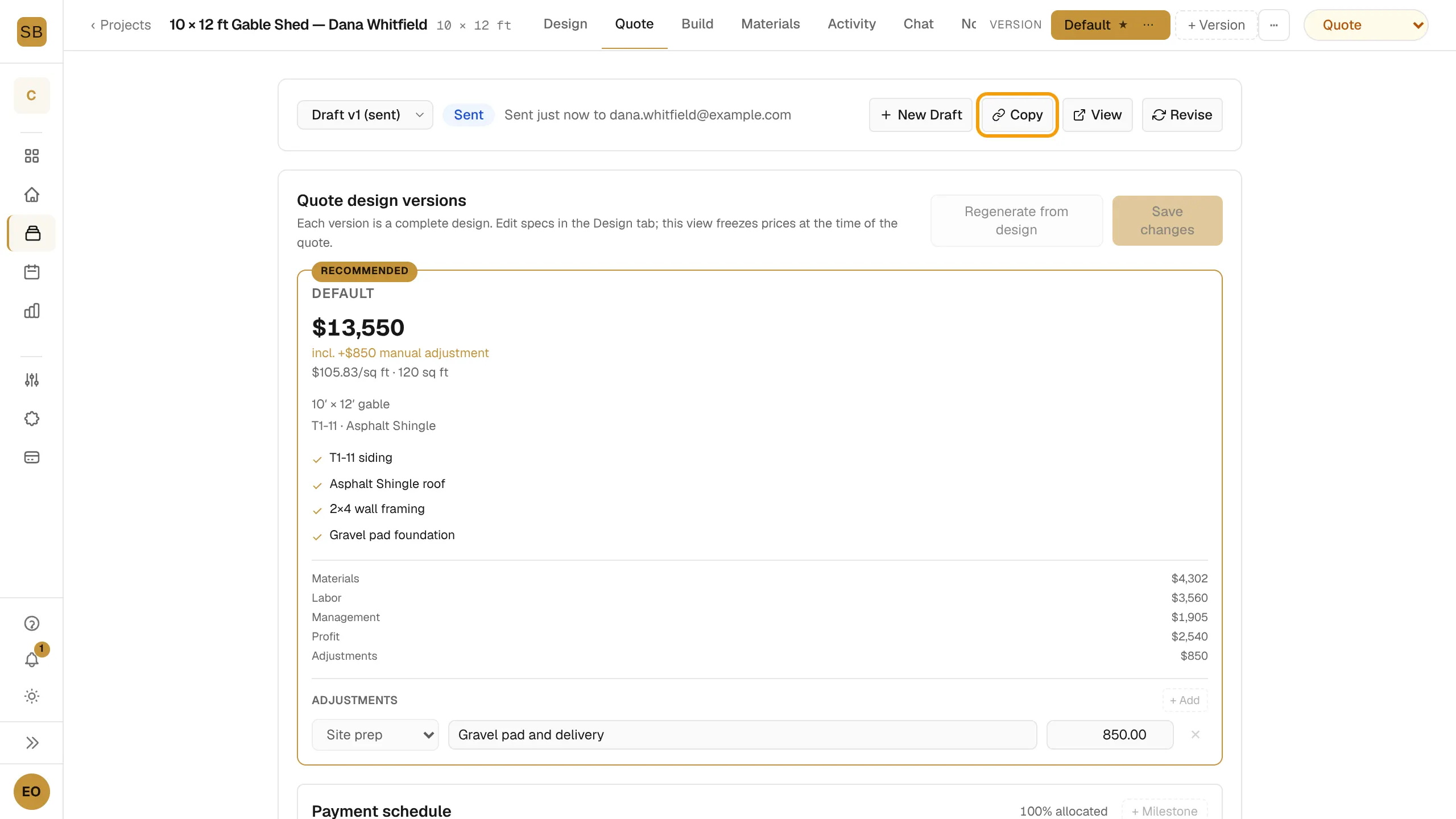
Once sent, use Copy to copy the public link or View to open it. The status line shows when the customer opened, accepted or declined it. See What your customer sees.
Change a sent quote
You cannot edit prices on a sent quote.
- Select Revise to make a new draft. The old link stops working.
- Select New Draft to start a fresh quote from the current design.
- Use the draft selector to switch between versions such as Draft v2.
A "Pricing as of" badge means the quote's prices are getting old. Use New Draft to refresh them before you resend.
Company details on the quote
Your DBA name, legal entity, contact details, insurance line and site access clause come from Public Quote Company Info under Settings → General. New quotes use the Default Payment Schedule from Settings → Crew Pricing.