When you send or publish a quote, your customer gets a link to a public quote page. They do not need an account. Use this article to know what they see and what each of their answers does on your side.
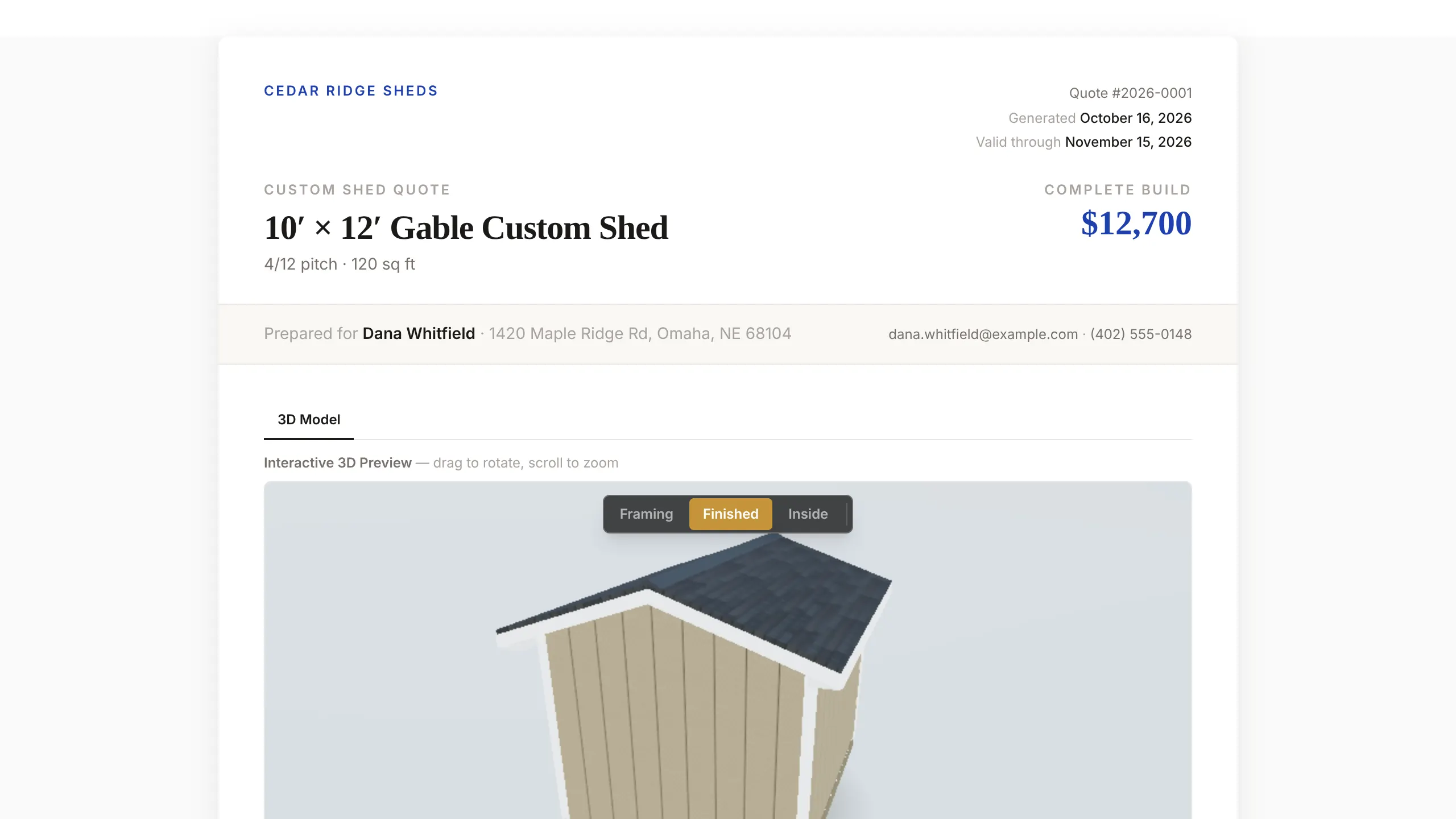
What is on the page
- Your company name and contact details, from Settings → General.
- The design in 3D, its key specs, and Package Options if you quoted more than one version.
- What they will pay, the payment schedule and the deposit due on signing.
- The terms, including your Master Contract as Exhibit A if you set one. See Create and send change orders.
- View Technical Drawings, when drawings are attached.
- A Valid through date.
How your customer responds
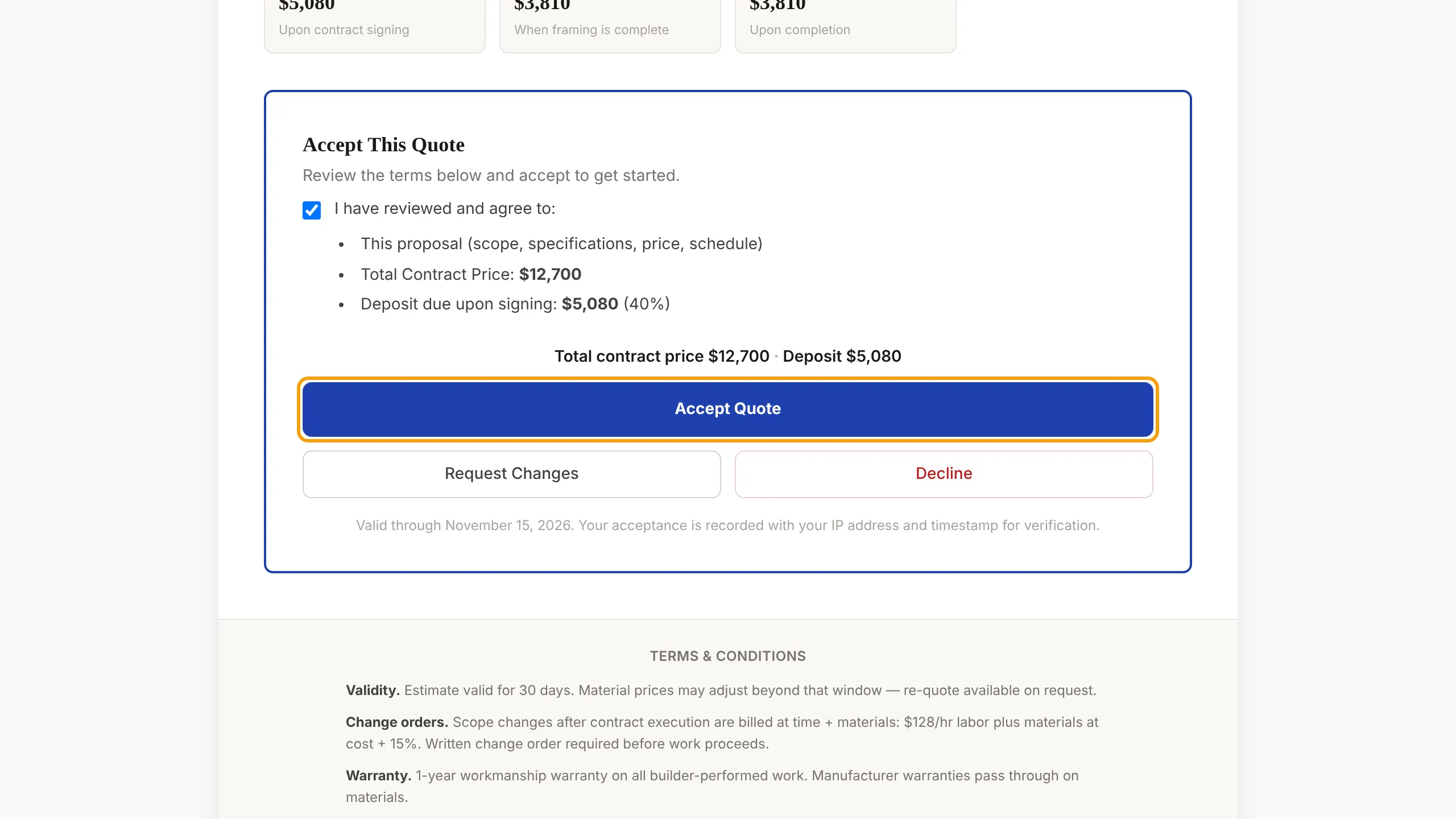
Accept
- They tick the agreement box. It lists the proposal, your Master Construction Contract or Terms & Conditions, the total contract price and the deposit.
- They select Accept Quote.
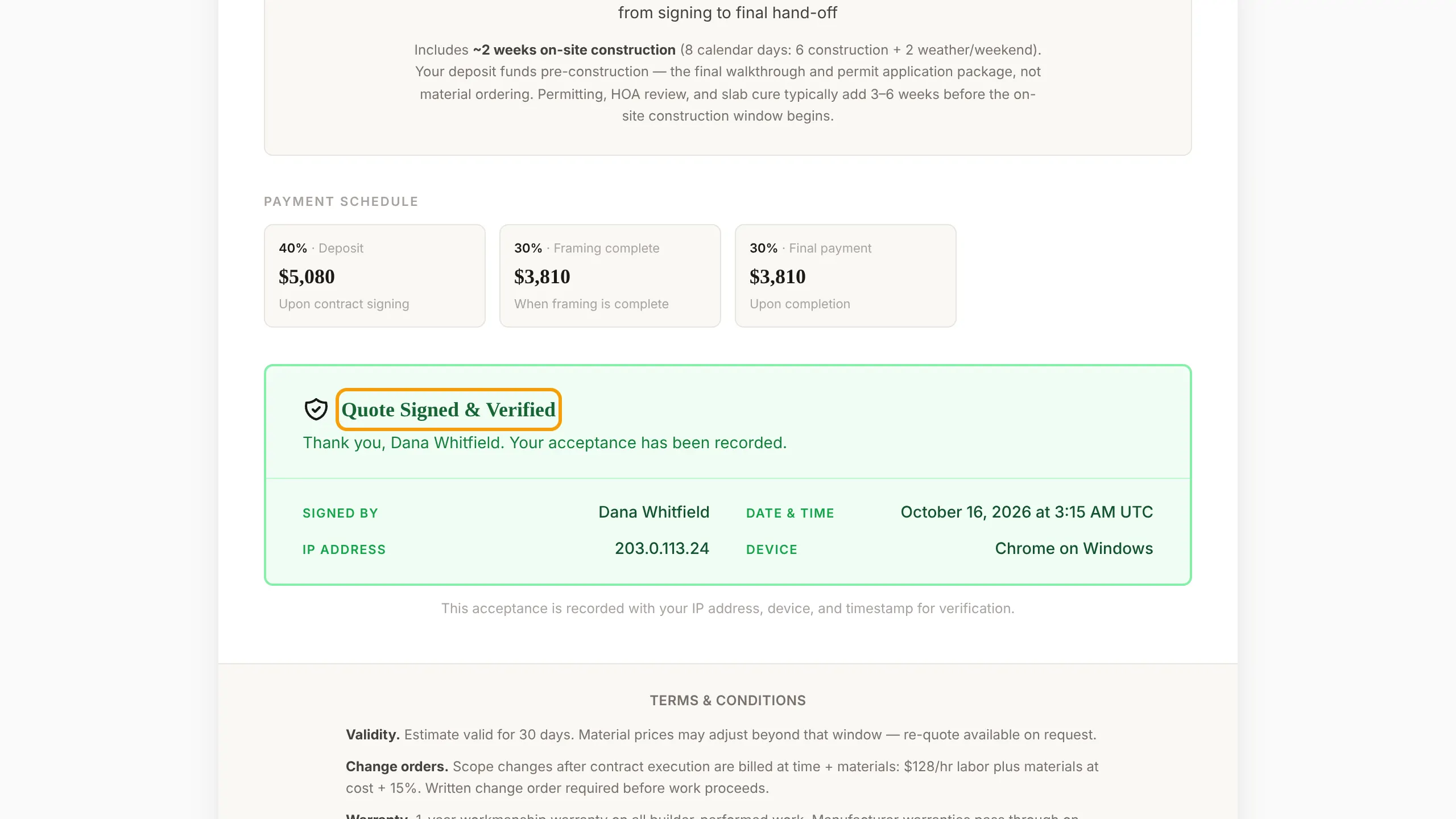
- The page shows Quote Signed & Verified with their name, the date and time, IP address and device.
- If a deposit invoice exists, they see Pay Deposit and can pay it right away. See Send invoices and collect payments.
Request Changes
They select Request Changes, describe what they want, and select Send Request. The quote shows as revision requested on your Quote tab. Select New Draft to make an updated quote from the design, then send it.
Decline
They select Decline, can add a reason, and confirm with Decline.
Expired and replaced links
- After the Valid through date, the page says This quote has expired and asks the customer to contact you.
- When you revise a quote, the old link stops working. Send the new one.