Add teammates to your workspace so they can work on projects and quotes with you. Each person has a role that sets what they can do.
Roles
| Role | What they can do |
|---|---|
| Owner | Everything, including billing, Stripe setup, plan sales and changing roles. One per workspace. |
| Admin | Edit projects, settings and presets, create invoices and change orders, and invite or remove members. |
| Estimator | Create, revise and send quotes, run the permit wizard and site plan, and share plans with subs. |
| Viewer | View only. |
Invite a teammate
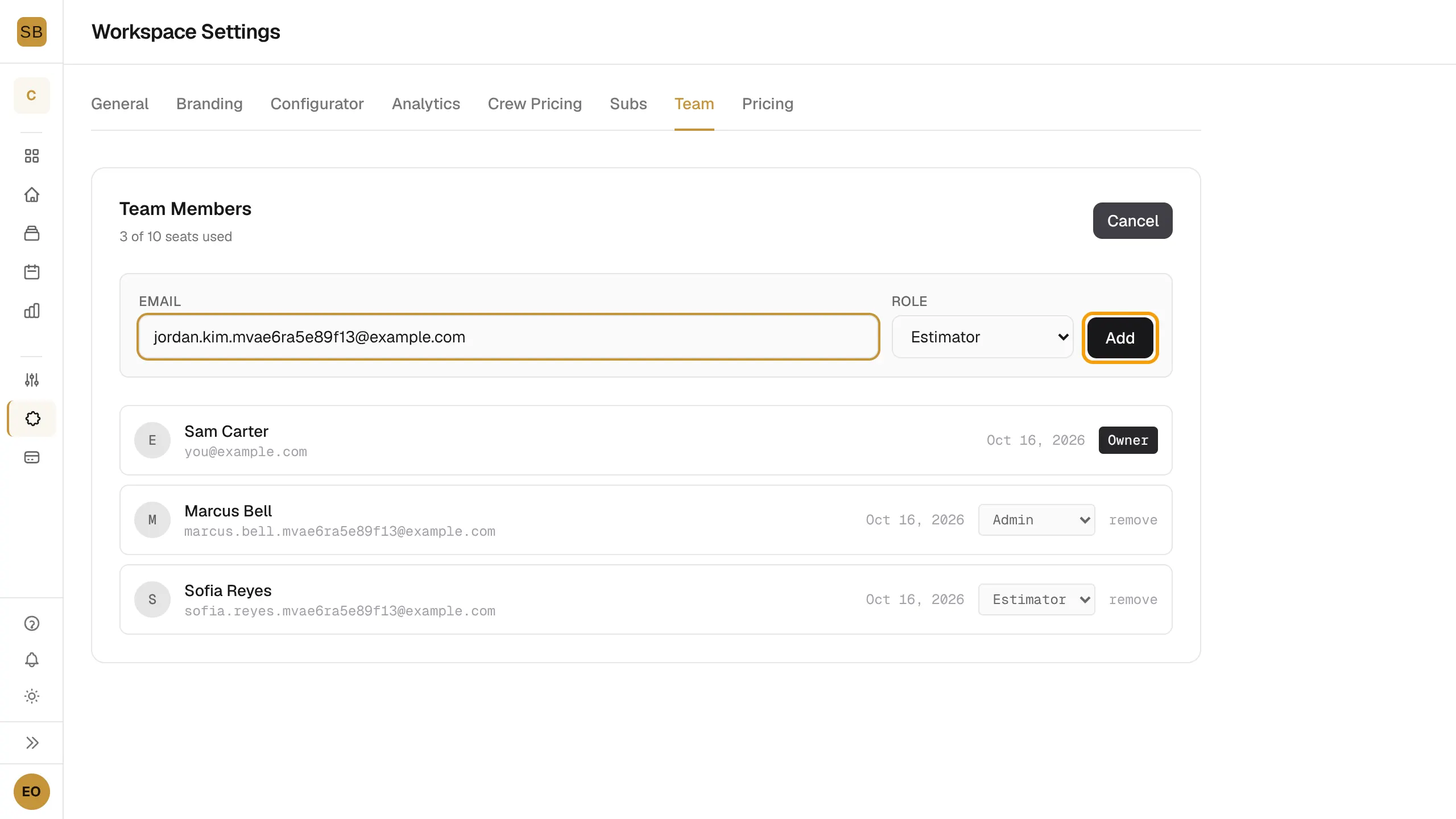
- Go to Settings → Team.
- Select Invite Member.
- Enter their Email and pick a Role: Admin, Estimator or Viewer.
- Select Add.
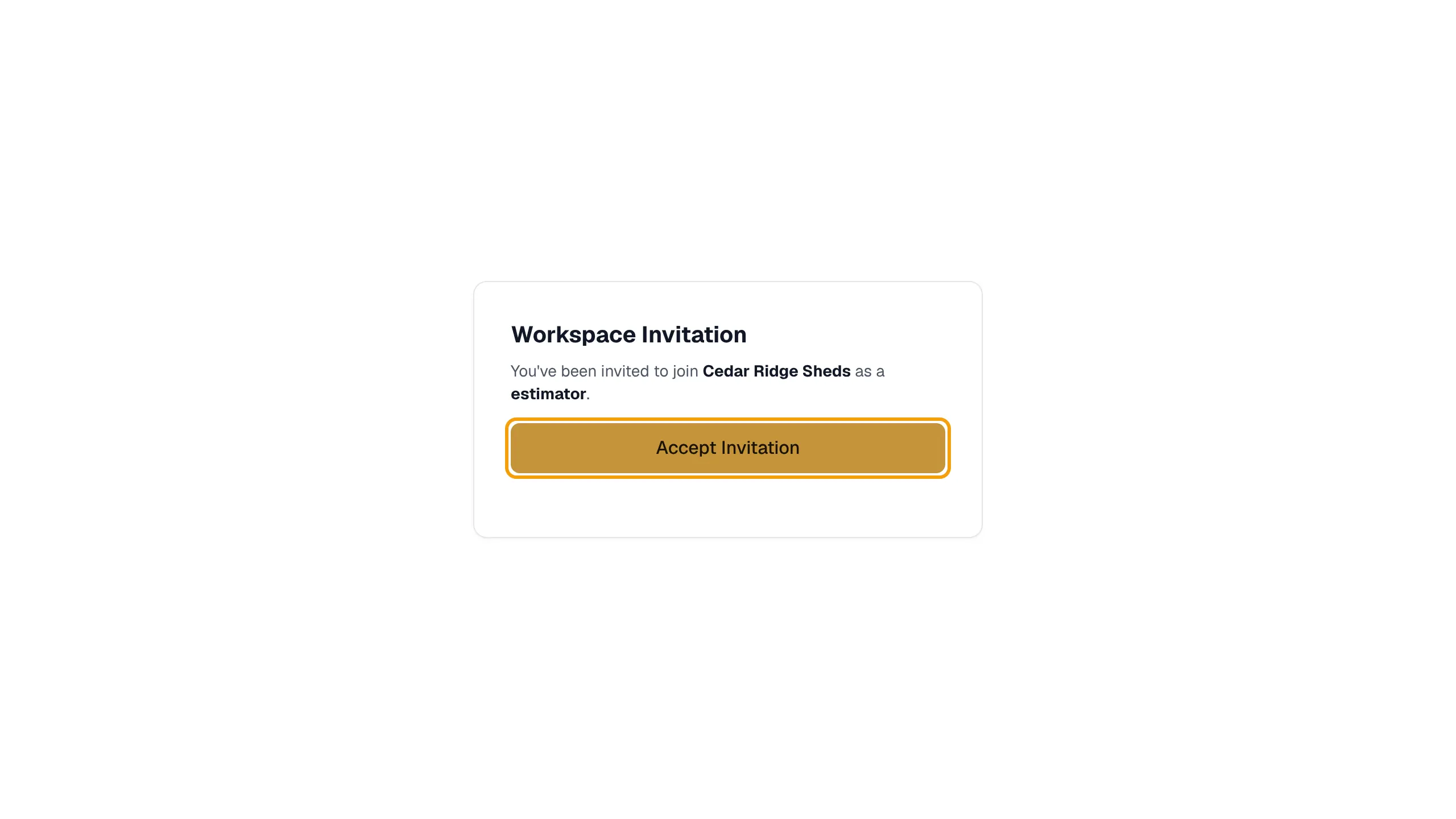
They get an email with a link. On the invite page they select Accept Invitation, or Sign in to Accept if they are not signed in. Invites expire after 7 days.
Seats
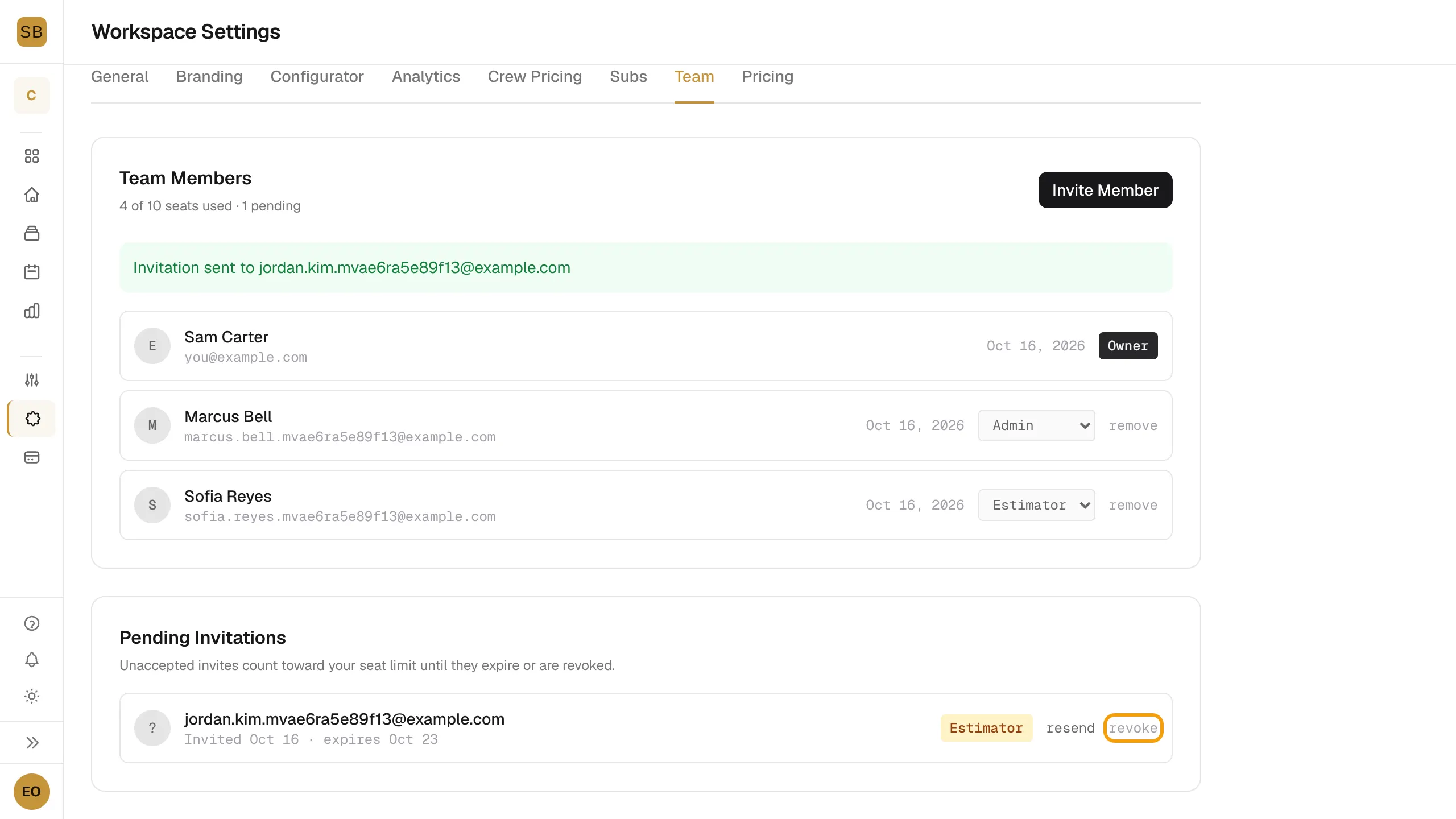
The header shows how many seats are used. Pro has 10 seats and a trial has 10. Pending invites count as seats until they are accepted, expire or are revoked. When you reach the limit, you see Seat limit reached and Upgrade Plan.
Manage members and invites
- To change a role, pick a new one from the member's role menu. Only the owner can change roles.
- To remove someone, select remove next to their name.
- Under Pending Invitations, select resend to send the email again or revoke to cancel it.
You can't change or remove the owner.
Switch workspaces
If you belong to more than one workspace, a workspace selector appears at the top of the sidebar. Select it and pick the workspace you want.
Owners and admins can invite and remove members.