The designer checks your design as you change it. Code warnings, span problems and engineering flags appear as alerts. Check them before you print plans or send a quote.
Find your alerts
When the design has something to fix, an alerts button with a warning icon and a count appears at the left of the top bar. It is red when at least one alert must be fixed, and amber otherwise. When nothing needs attention, the button is hidden.
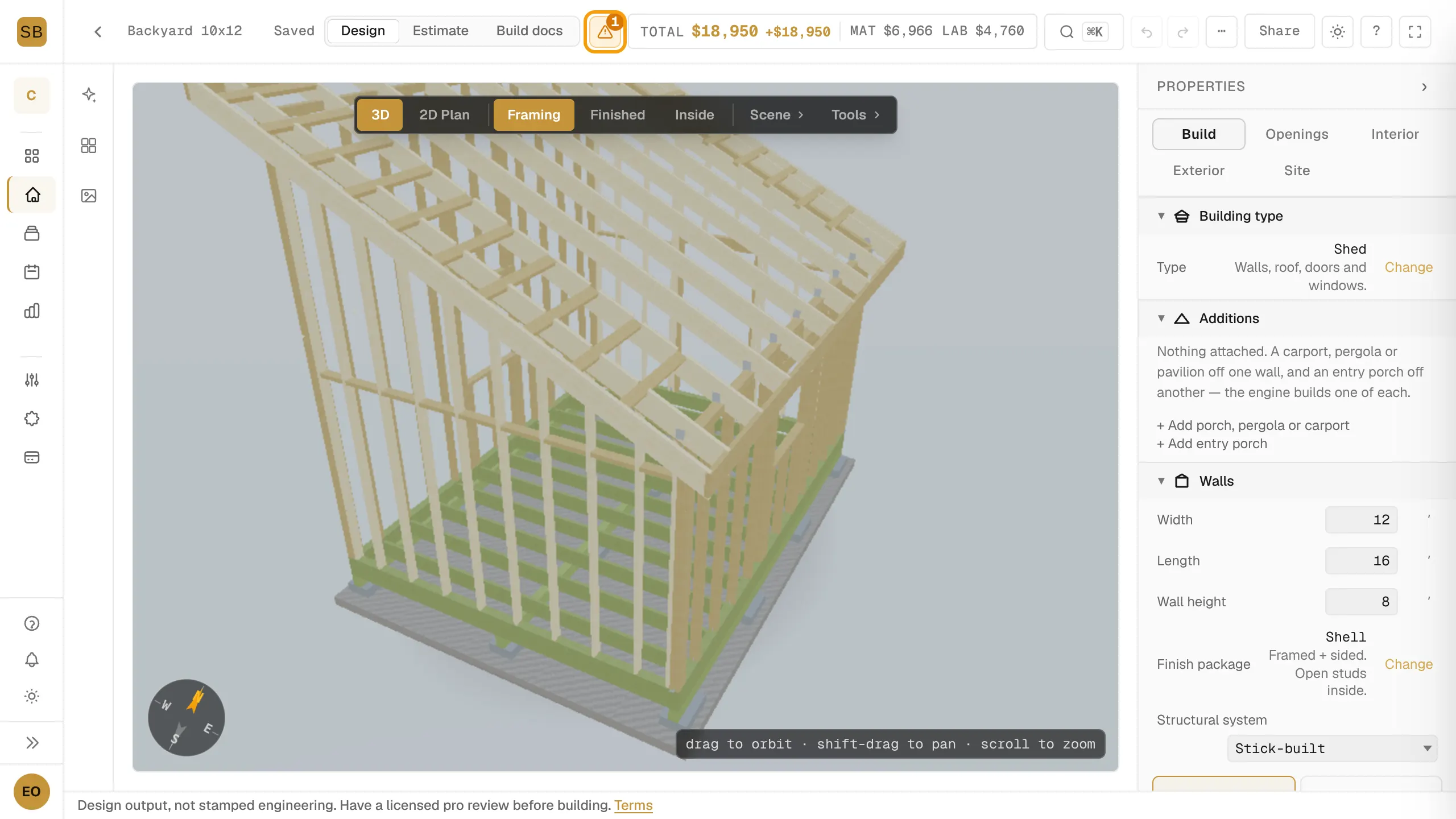
Read and fix an alert
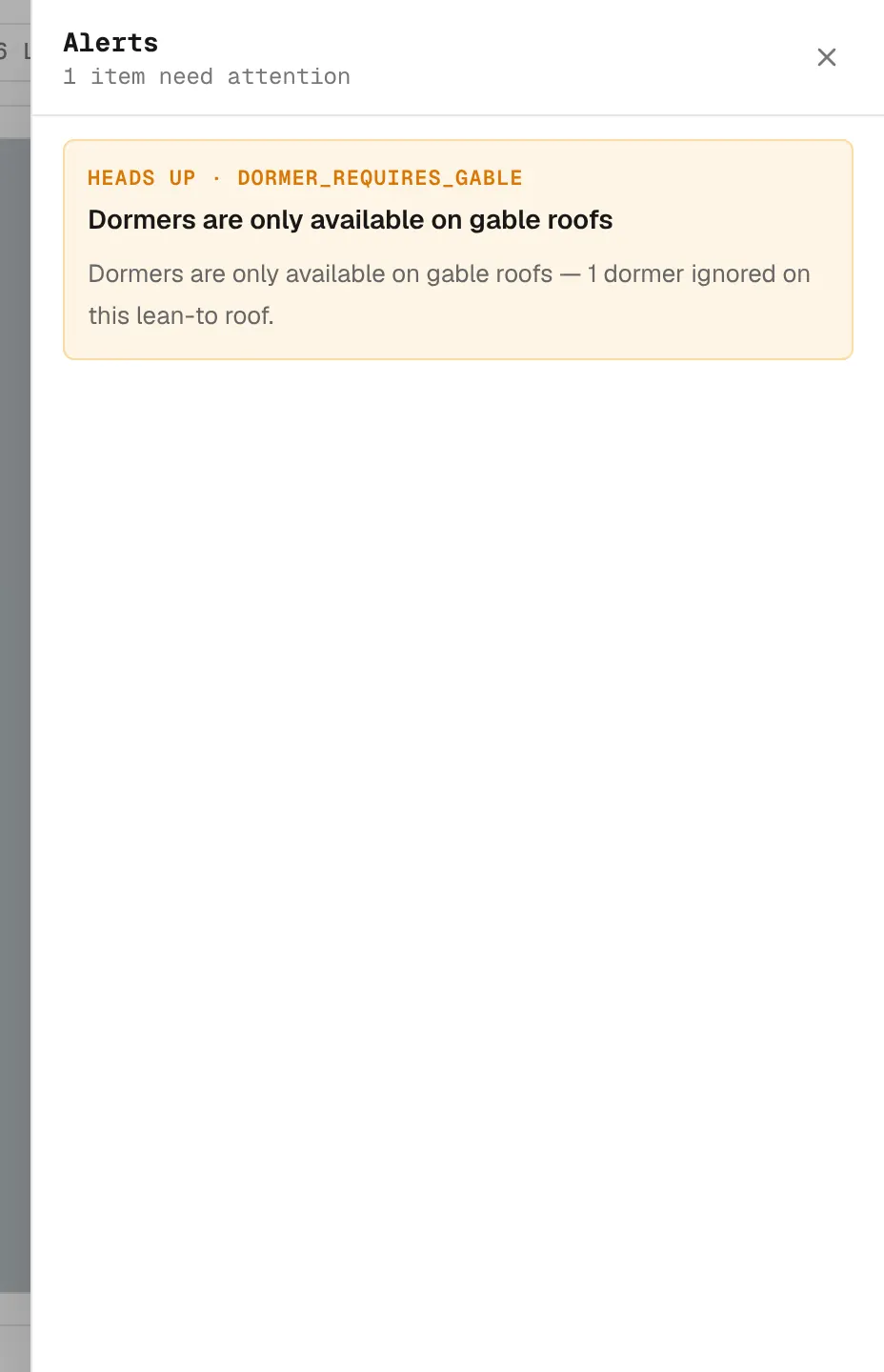
- Select the alerts button. The Alerts drawer opens and says how many items need attention.
- Read each alert. Its label says how serious it is:
- Must fix: the design breaks a rule and needs a change.
- Heads up: worth checking, but not blocking.
- Under the title is a plain-English explanation and, often, a suggestion.
- If the alert has a Fix it button, select it. The designer makes the change for you.
- If there is no Fix it, change the design by hand, using the suggestion.
- Select the close button, or press Esc, to close the drawer.
The drawer updates as you edit. When it reads Everything checks out, there is nothing left to fix.
Undo a fix
Fix it changes your design like any other edit. Select Undo in the top bar to reverse it. See Save, undo, duplicate and organize designs.