The AI chat changes your design from plain-language requests. It lives in the left rail under AI. Use it when typing a request is faster than finding the setting, or to ask how something works.
Ask for a change
- Select AI in the left rail.
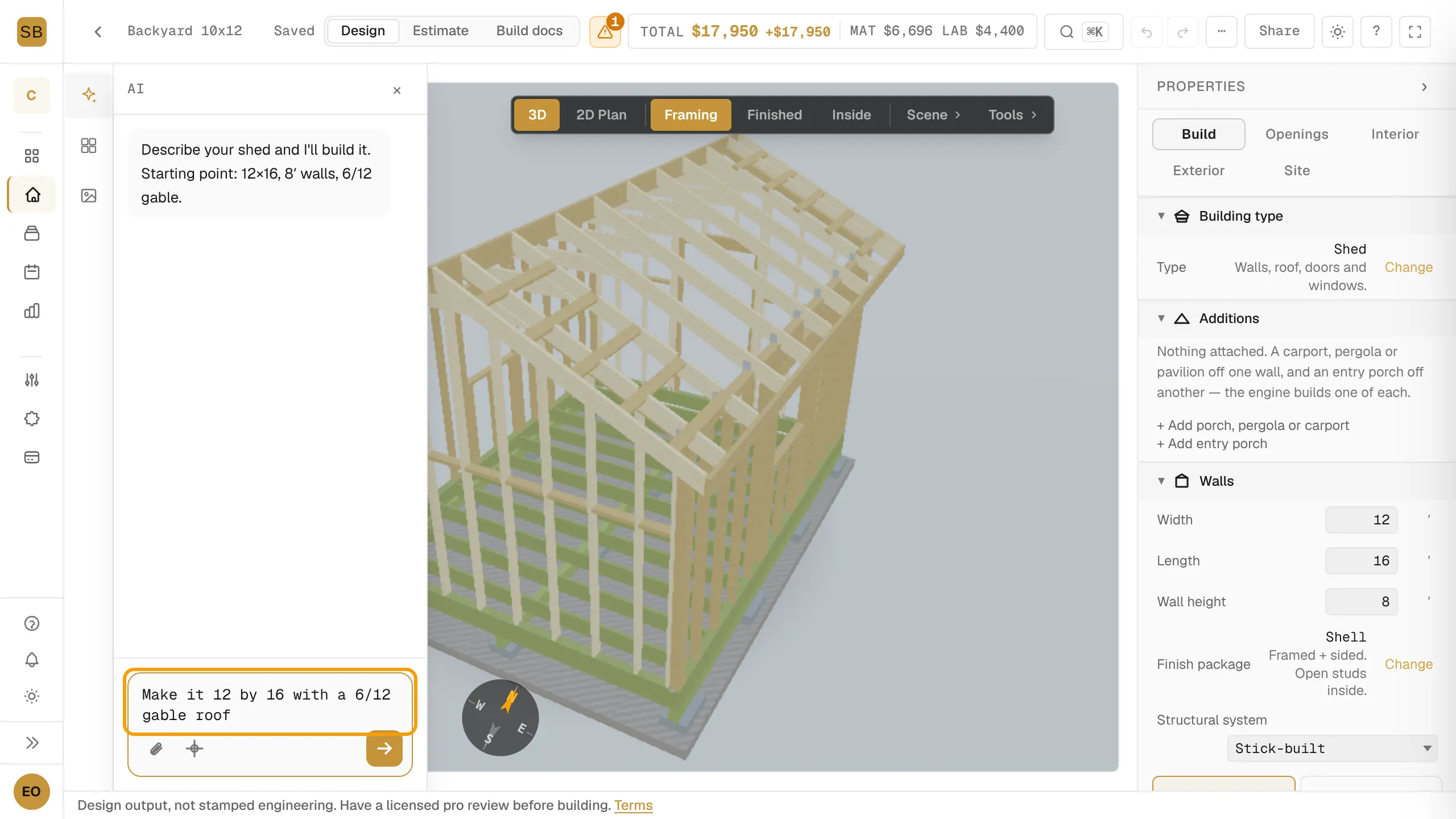
- Type in the box marked Describe your shed.... For example: "make it 12 by 16 with a 6/12 gable roof".
- Press Enter or select the send button.
The assistant applies the change and replies. Under its reply, a Changed: line lists what moved, such as a width going from 14′ to 12′.
Review or undo a reply
Each reply that changed the design has two buttons:
- Reveal opens the properties panel at the settings that changed.
- ↺ Undo reverses that reply's changes only.
You can also use the main Undo in the top bar. See Save, undo, duplicate and organize designs.
Place something on a wall
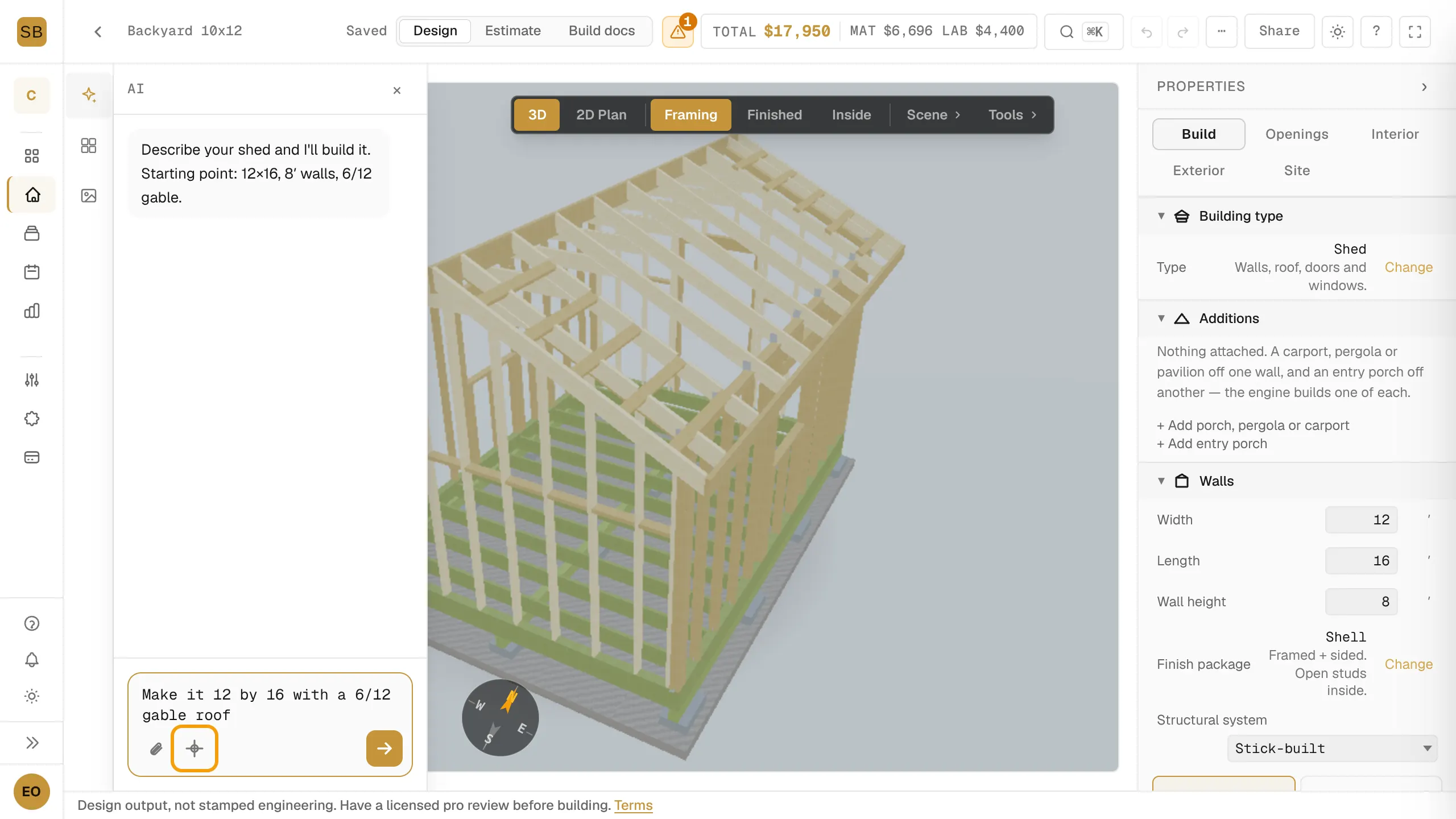
- Select the pin button next to the chat box. Its tooltip reads Click to place on wall.
- Click a wall in the 3D view. The box now shows Pin: and the spot you picked.
- Describe what to put there, such as "a 36-inch door".
- Press Esc to leave placement mode. Select × on the pin to clear it.
Match a reference photo
- Select Attach a reference photo next to the chat box.
- Pick an image. You can attach up to 4 photos to one message.
- Send. The assistant updates the design toward what it sees.
You can also upload inspiration photos under Photos in the left rail. See Use the 3D view.
Limits
- Guests get five free chat turns. After that, save your design to keep chatting. See Start designing your own shed.
- Daily limit. If you reach the day's AI chat allowance, the box says so. The controls in the properties panel still work.
- DIY packages include 90 days of AI assist. After that the chat stops, but editing and your plans do not expire. See Extend AI assist or go Pro.