Your configurator carries your brand and runs at your own address. Set it up once and every visitor sees your company, not ours.
Set your branding
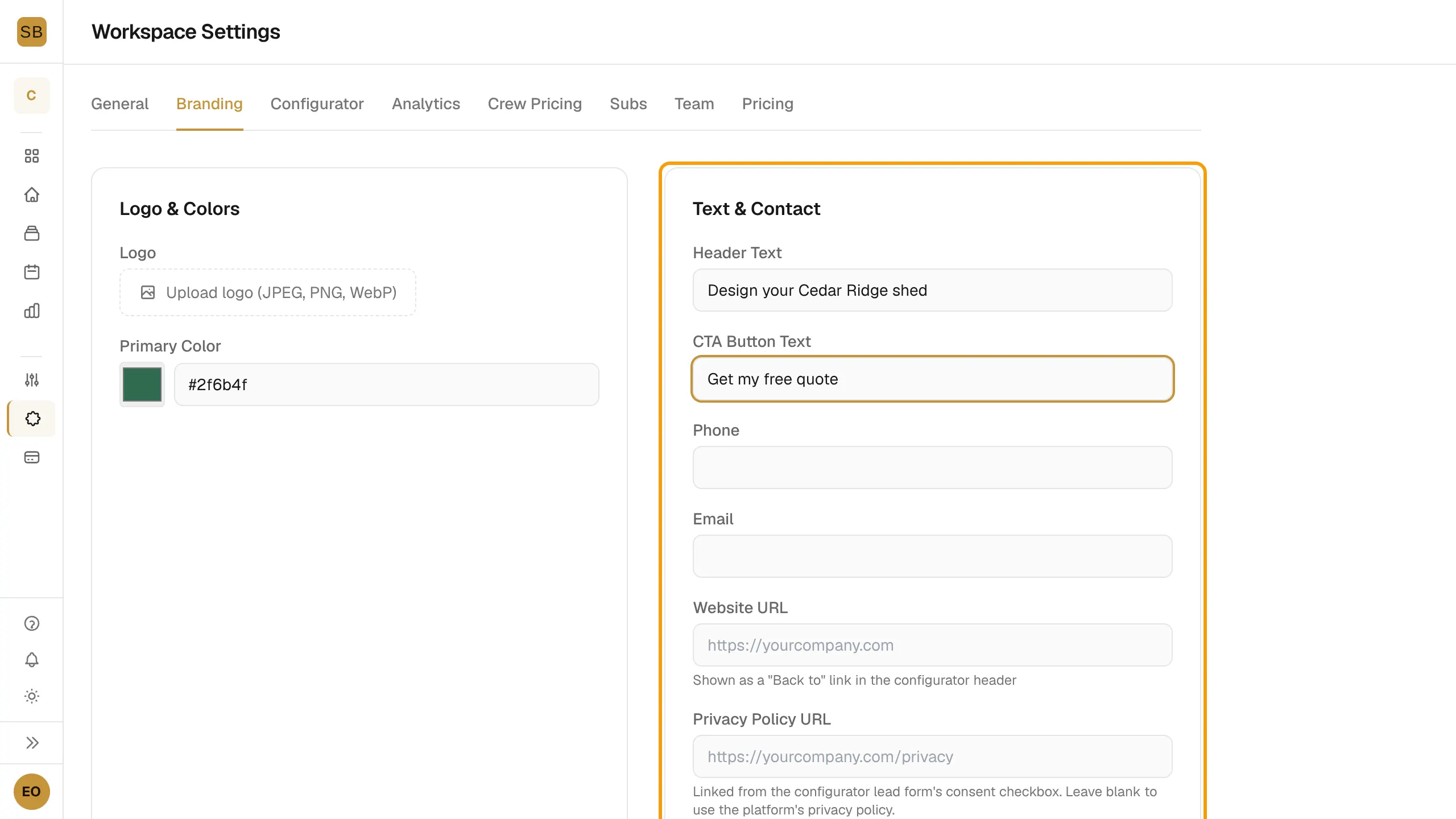
- Select Settings in the sidebar, then the Branding tab.
- Under Logo & Colors, select Upload logo (JPEG, PNG, WebP). Pick your Primary Color with the picker or type a hex code.
- Under Text & Contact, fill in:
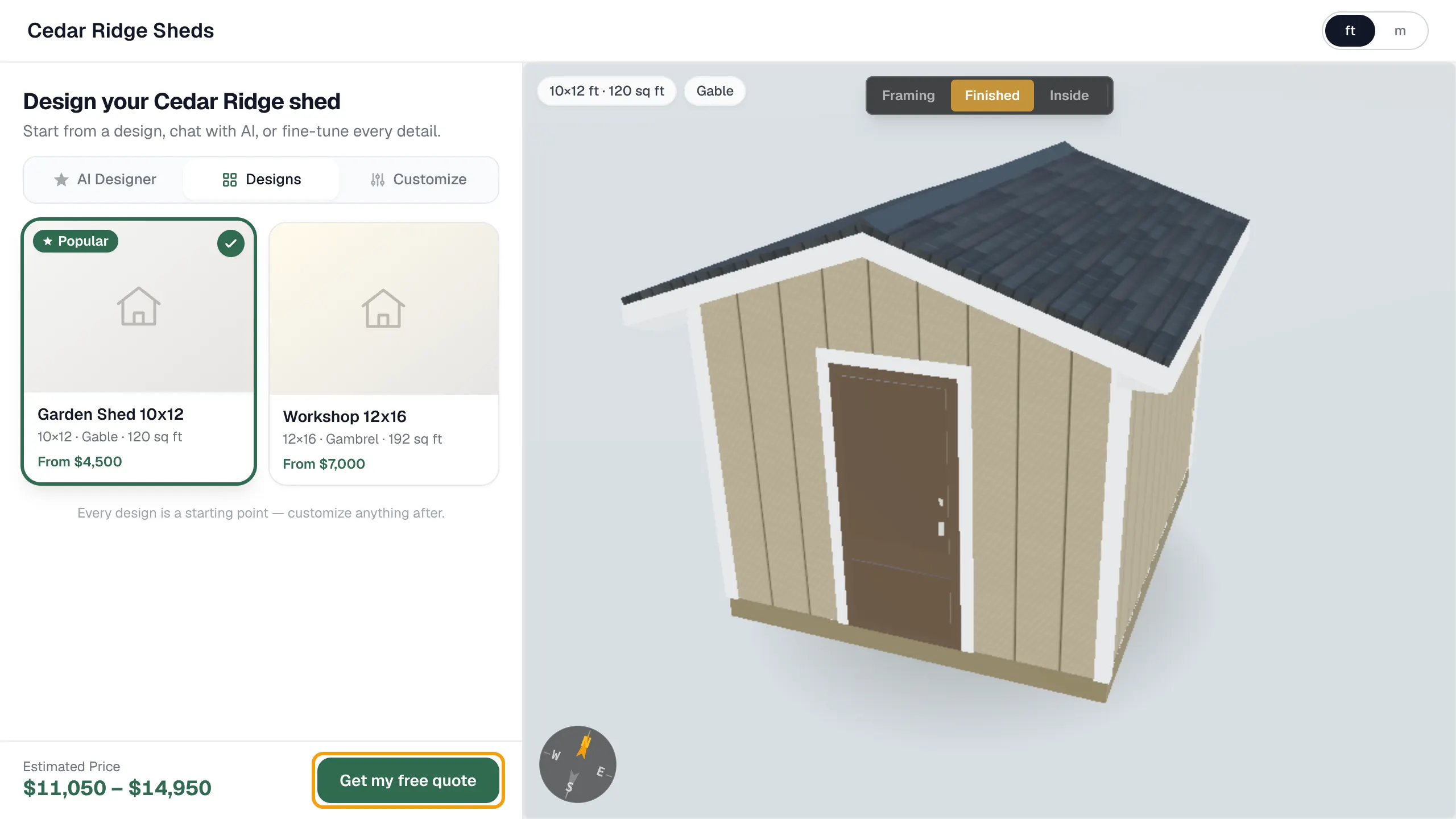
- Header Text: the title visitors see.
- CTA Button Text: the label on the quote button.
- Phone, Email and Website URL.
- Privacy Policy URL: linked from the lead form's consent checkbox. Leave it blank to use the platform's policy.
- Select Save Settings.
Change your subdomain
- On the General tab, find Workspace Info.
- Type the new name under Subdomain and select Change.
Connect a custom domain
Builder and Pro include custom domains. If your plan does not, the card shows an upgrade link instead.
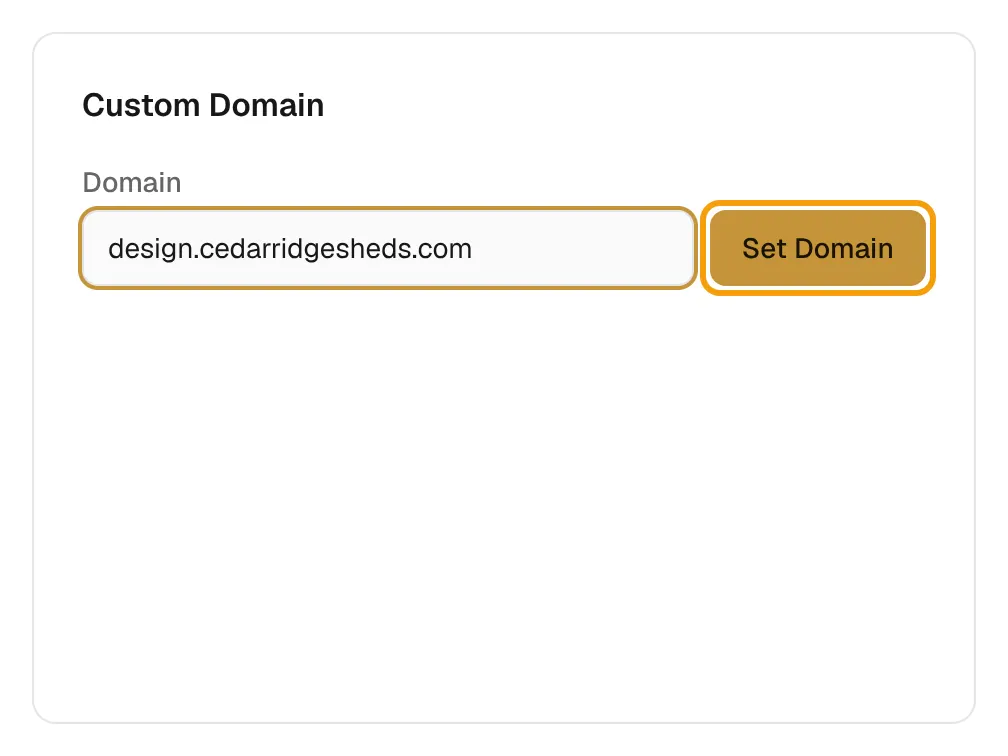
- On the General tab, find Custom Domain.
- Type a domain such as
design.yourcompany.comand select Set Domain.
- At your domain registrar, add the DNS record shown: Type, Name and Value.
- Select Verify DNS. The badge changes from Pending verification to Verified.
Once verified, the embed code on the General tab uses your domain.
Search & AI Visibility
On the General tab, Let search engines and AI assistants index your configurator page is on by default. Turn it off to keep the page out of search results and AI answers, then select Save Settings.
The "Powered by" badge
The configurator shows a Powered by ShedBuilder.ai badge. It is removed automatically on Pro. There is no setting for it.
Related: Put the configurator on your website.