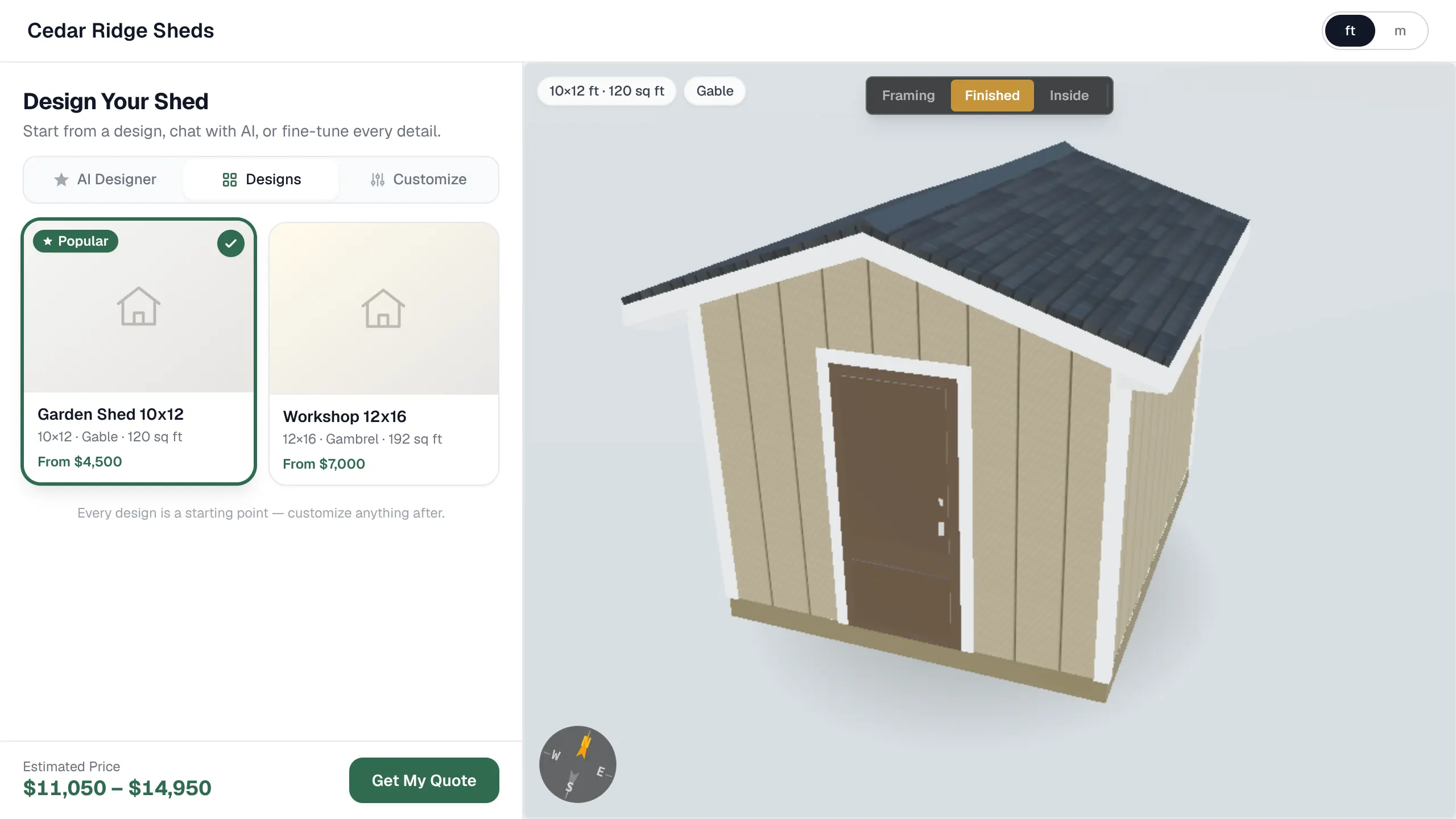
Your configurator is a public page where customers design a shed and ask you for a quote. It runs at your workspace subdomain, and you can embed it in any page on your own website. Every plan includes it.
What visitors can do
- AI Designer: describe the shed they want.
- Designs: start from a ready-made design.
- Customize: change the size and options by hand.
When they are ready, they select the quote button and fill in the lead form. Each request lands in Projects as a new lead. See Track leads and jobs in Projects.
Embed it on your website
- Select Settings in the sidebar. Stay on the General tab.
- Find Embed on Your Website.
- Select Copy Embed Code.
- Paste the code into an HTML or custom-code block on your page.
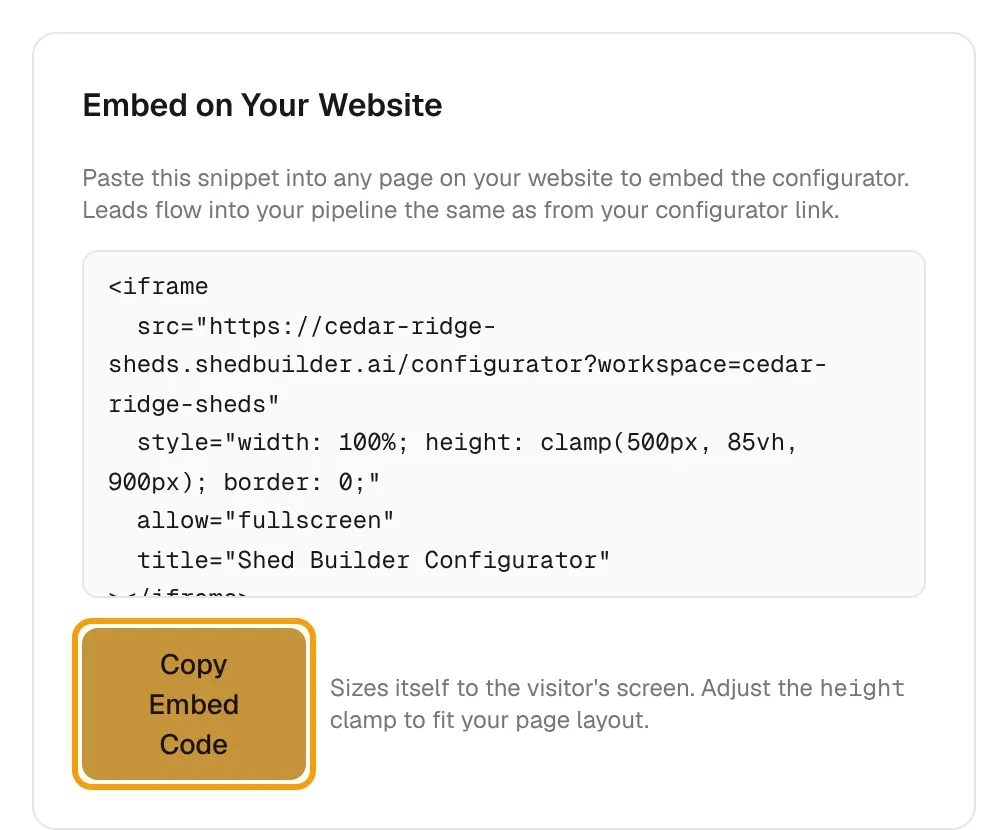
The embed sizes itself to the visitor's screen. To fit your layout, change the height value in the code. Once your custom domain is verified, the code uses it.
Set what visitors see
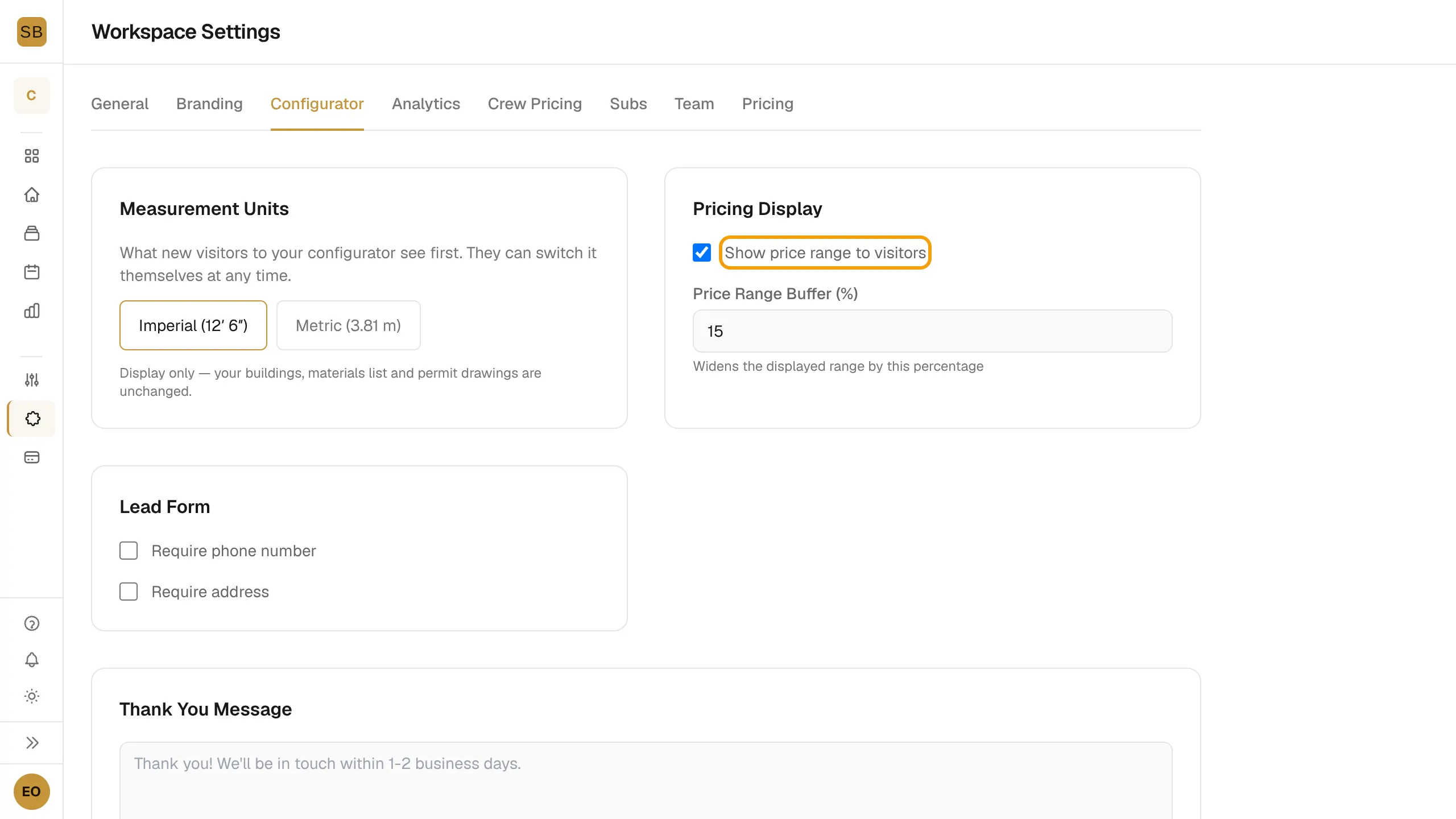
- In Settings, select the Configurator tab.
- Measurement Units: pick Imperial or Metric as the default. Visitors can switch it themselves.
- Pricing Display: turn Show price range to visitors on or off. Price Range Buffer (%) widens the range shown.
- Lead Form: turn on Require address if you need the job-site address.
- Thank You Message: write what visitors see after they submit.
- Select Save Settings.
Get lead emails
On the General tab, enter the address for new-lead emails under Lead Notifications, then select Save Settings.
To change the logo, colour and button text, see Brand your configurator and use your own domain.