Projects in the sidebar is your pipeline. Every lead and job sits in one stage, from first contact to finished build. Use it to see what needs attention and to move work forward.
Stages
| Stage | Meaning |
|---|---|
| New Lead | A configurator lead, or a project you added by hand. |
| In Design | You are working on the design. |
| Quote | A quote exists for the customer. |
| Sold | The customer accepted. |
| Scheduled | The build has a start date. |
| In Progress | The crew is building. |
| Complete | The job is done. |
| Lost | The customer went elsewhere. |
| Cancelled | The job was called off. |
Leads from your public configurator land in New Lead on their own. To get an email for each one, set Lead Alert Email under Settings → General → Lead Notifications.
View and filter
- Select Projects in the sidebar.
- Switch between Kanban and List with the view toggle in the header.
- Pick a filter: All Projects, Needs Attention, Quotes Out or Active Work.
Needs Attention shows expired quotes, quotes where the customer asked for changes, and new leads older than three days. Active Work shows Scheduled and In Progress jobs.
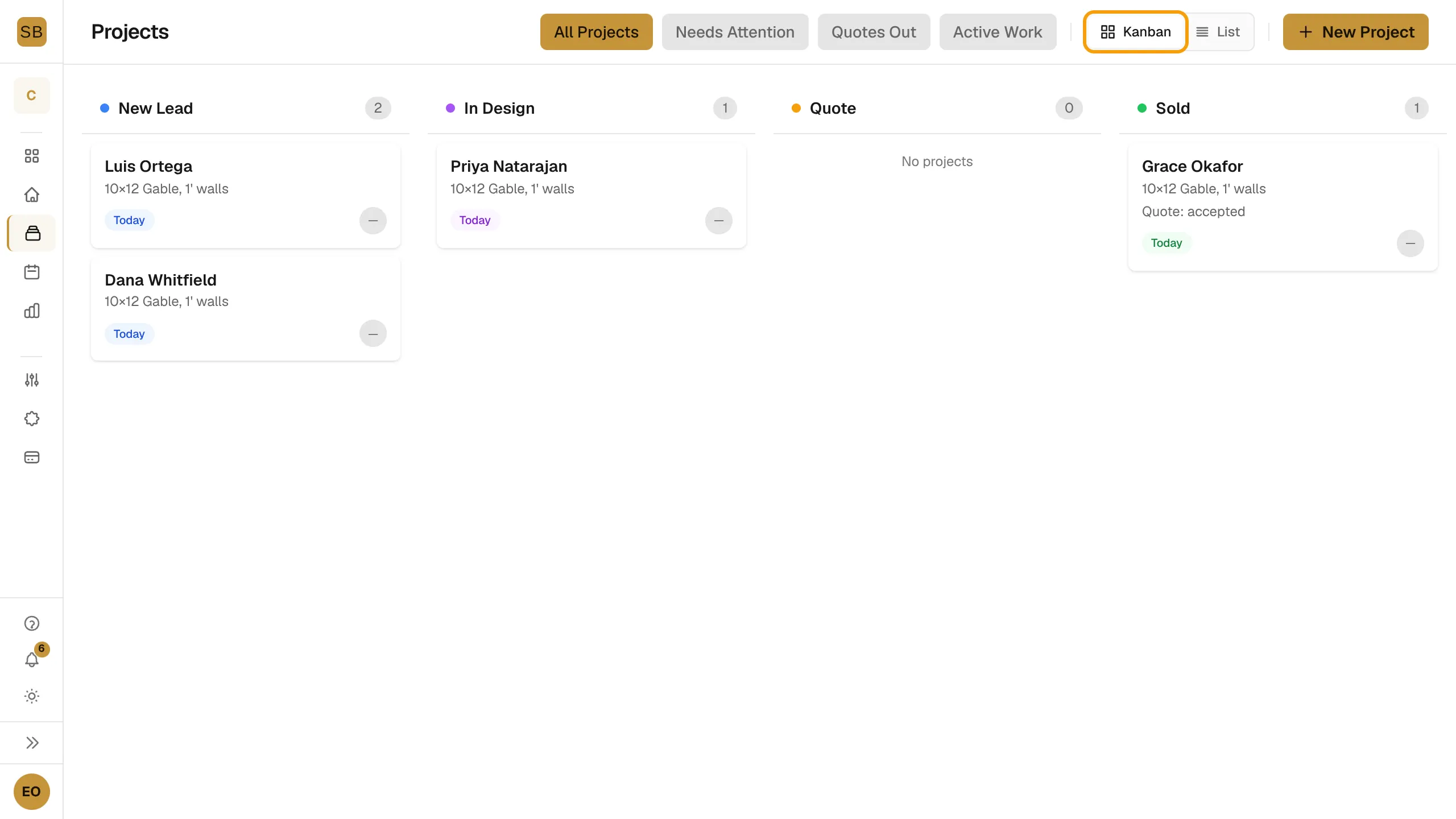
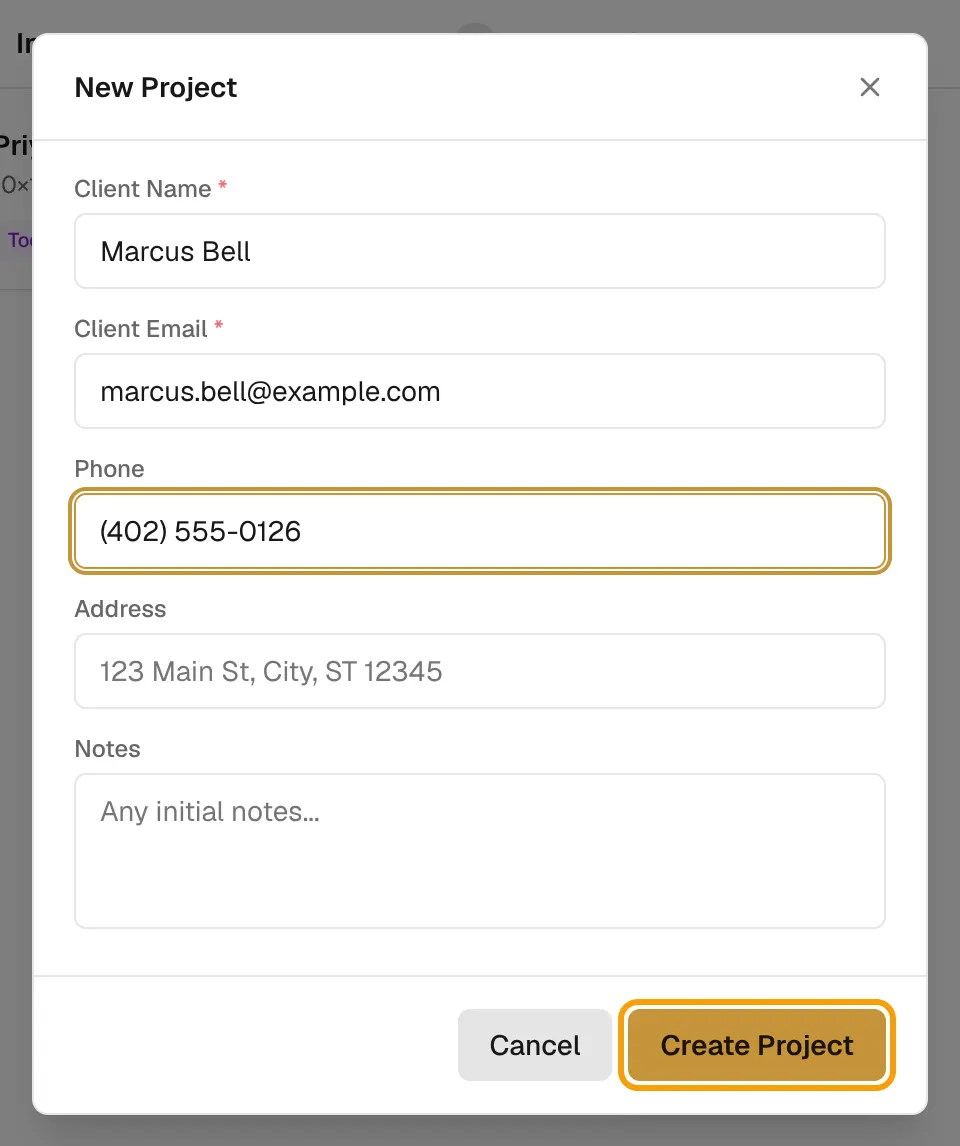
Add a project by hand
- Select New Project.
- Enter Client Name and Client Email. Phone, Address and Notes are optional.
- Select Create Project.
Change a stage
- On the board, drag a card to another column. Or open the project and use the stage pill in the header.
- Some moves ask for more in a Confirm Stage Change dialog:
- Lost and Cancelled ask for a reason.
- Scheduled asks for a start date. See Schedule builds.
- Complete asks for total crew man-hours. This is optional.
- Sold asks to mark the latest quote as accepted if it is not.
- Select Confirm.
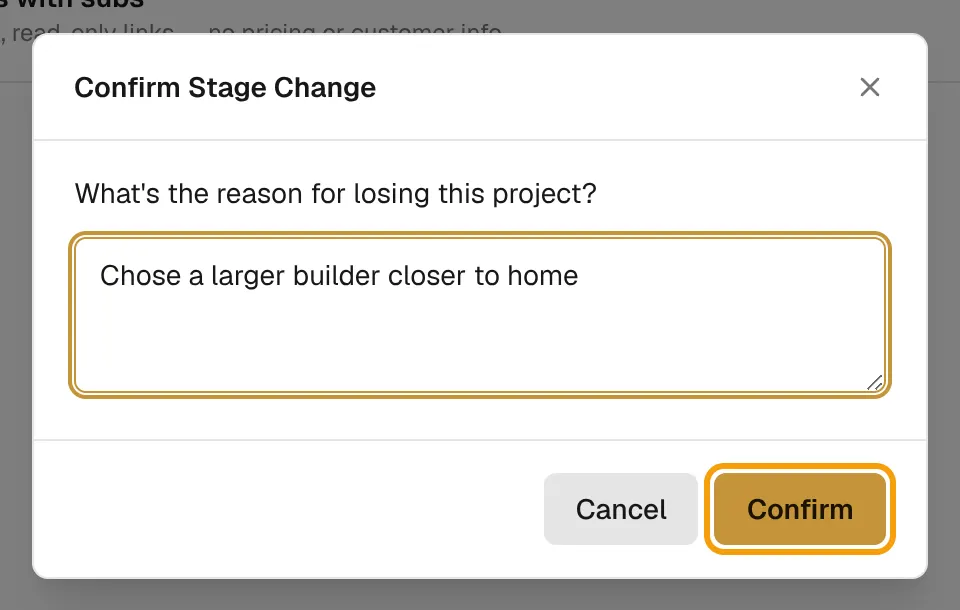
Only some moves are allowed. A project moves forward one stage at a time, except that a New Lead can go straight to Quote. A Quote can go back to In Design, and any open project can be marked Lost or Cancelled. A Lost project can reopen as a New Lead. Complete and Cancelled are final.
Next: Work inside a project.