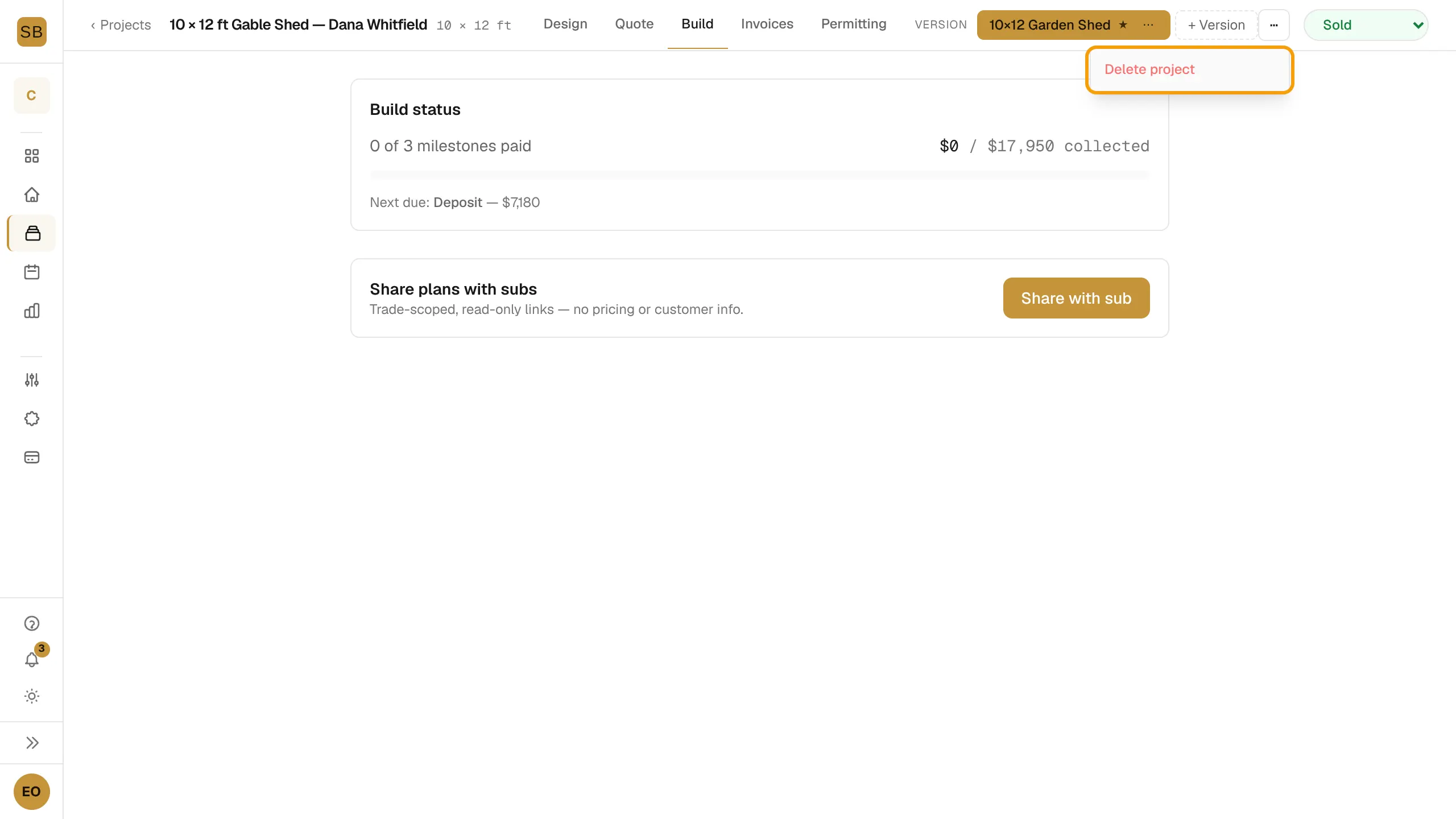
Open any card in Projects to see the project page. The header shows the design and client name, the tabs, the version switcher, the Project actions menu (⋯) and the stage pill.
Tabs
| Tab | What it is for |
|---|---|
| Design | The designer, for the selected version. |
| Quote | Build and send quotes. See Create and send a quote. |
| Build | Payment progress, Share plans with subs, and estimated vs actual labor once the job is complete. |
| Invoices | Milestone invoices and change orders. Shown from Sold onward. |
| Permitting | The permit wizard. Shown from Sold onward. |
| Materials | The bill of materials for the version. |
| Activity | The project timeline. Add a note and select Save Note. |
| Chat | Past conversations: the customer's lead intake and your designer sessions. |
| Notes | Private team notes. They save as you type. |
| Sell as Plans | Sell the design as a plan set. See Sell your plans. |
| Settings | Client Details, Crew Pricing Override and Plans & Permitting for this project. |

Design versions
A project can hold several designs, for example a 10×12 and a 12×16 option. The default version has a ★ and is shown to clients first.
- Select + Version.
- Type a Version name. Tick Default to make it the default.
- Select Duplicate to copy the current version, or Empty to start from scratch.

To manage a version, select More actions (⋯) on its chip, then Rename, Set as default, Duplicate or Delete. You cannot delete the last version.
Record actual labor
When a project is Complete, the Build tab shows estimated man-hours. If you skipped the hours when you closed the job, enter them in Actual man-hours and select Record.
Delete a project
- Select Project actions (⋯).
- Select Delete project and confirm. This cannot be undone.