Schedule shows your builds on a calendar by start date. Use it to see what your crews have coming up.
Set a start date
A project gets a start date when you move it to Scheduled. You can do this on any plan.
- Open a project that is Sold. Or find its card on the Projects board.
- Change the stage to Scheduled, using the stage pill or by dragging the card.
- In Confirm Stage Change, pick the start date.
- Select Confirm. You can't confirm without a date.
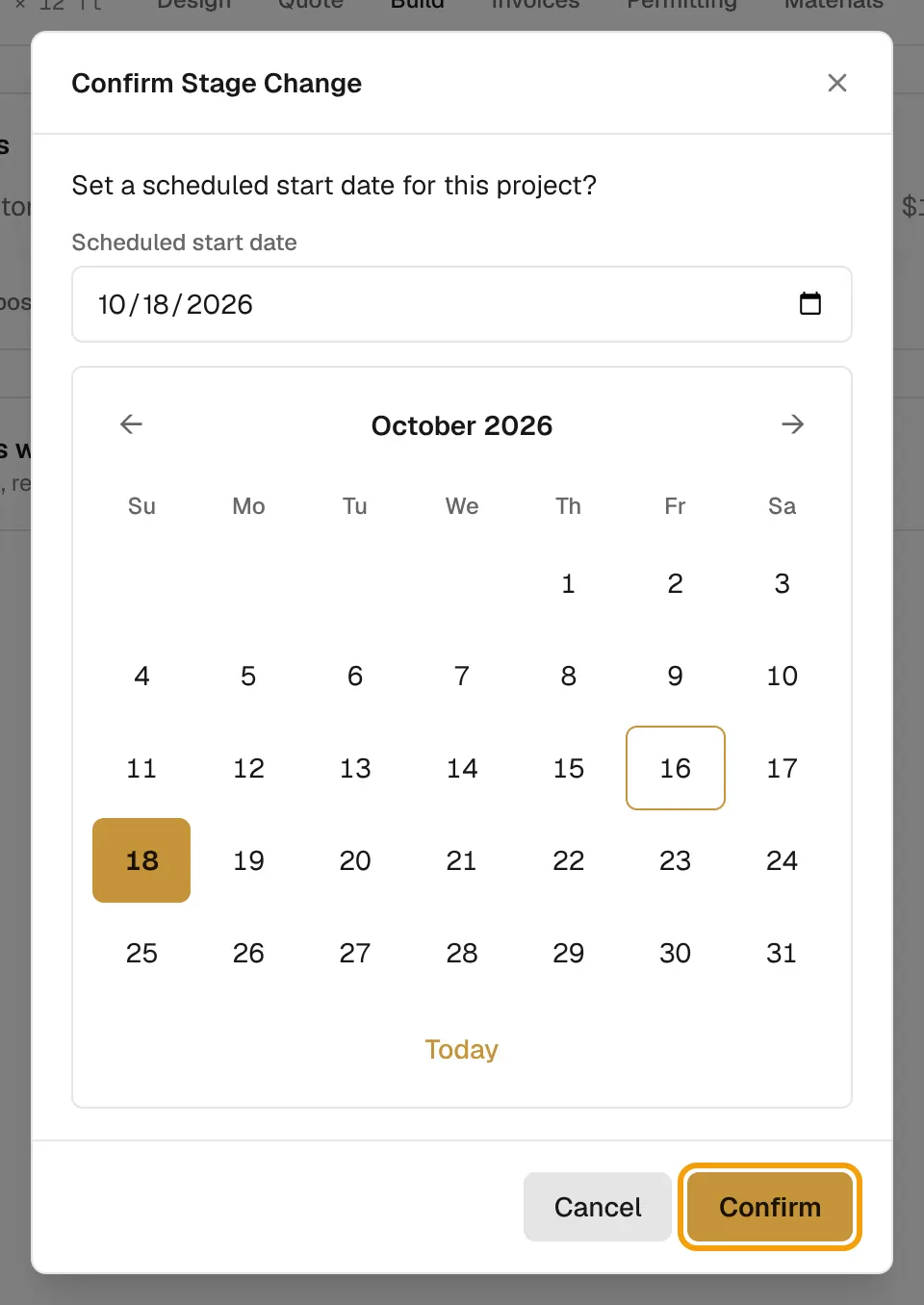
See Track leads and jobs in Projects for the other stages.
Use the calendar
- Select Schedule in the sidebar.
- Choose Monthly or Weekly.
- Use the arrows to go back or forward, or select Today.
- In the monthly view, jump with the month and year pickers.
- Select a job to open its project.
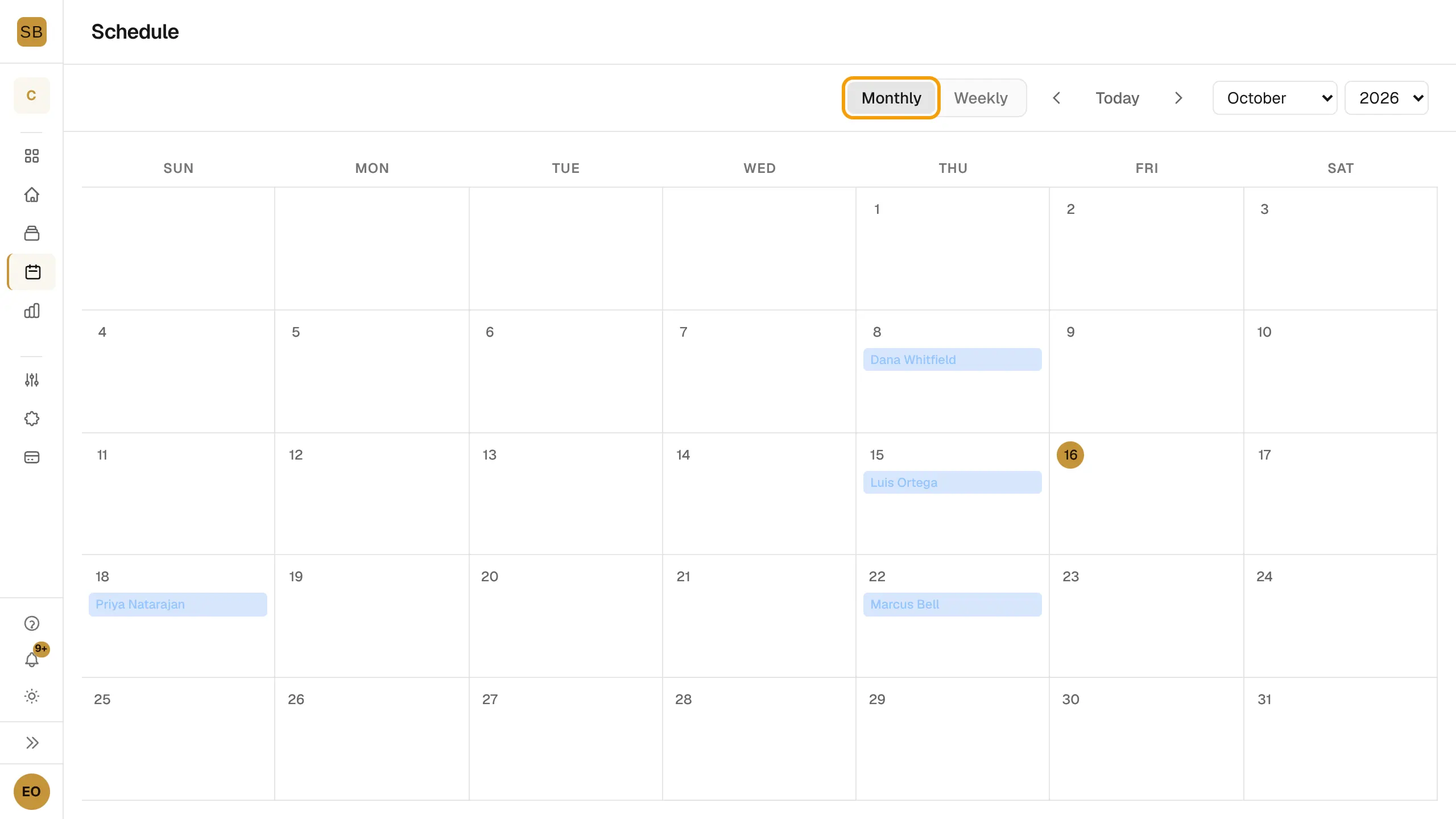
The calendar shows every project with a scheduled start date. A day in the monthly view lists up to three jobs and a count of the rest.
Only owners and admins can change a project's stage.