Your crew rates turn the estimated hours into labor cost, and your margins turn cost into the client price. Set them once for the workspace, then override them on a project when a job is different.
Set your default crew rates
- Select Settings in the sidebar, then the Crew Pricing tab.
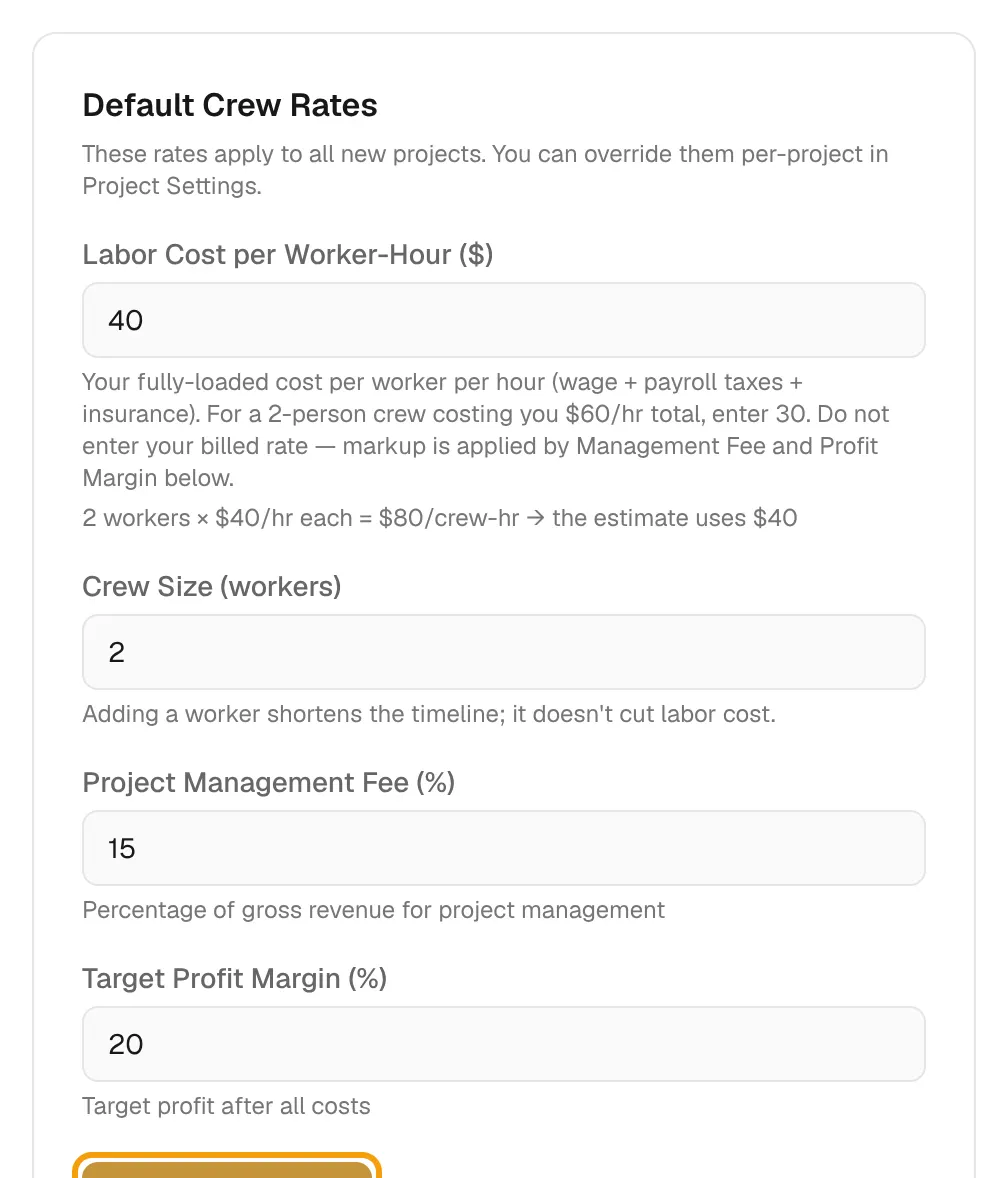
- In Default Crew Rates, fill in:
- Labor Cost per Worker-Hour ($): your fully loaded cost per worker, not your billed rate.
- Crew Size (workers): a bigger crew shortens the timeline. It does not cut labor cost.
- Project Management Fee (%) and Target Profit Margin (%): both are a percent of the client price. Together they must stay under 100%.
- Select Save Crew Rates.
Calibrate to your crew
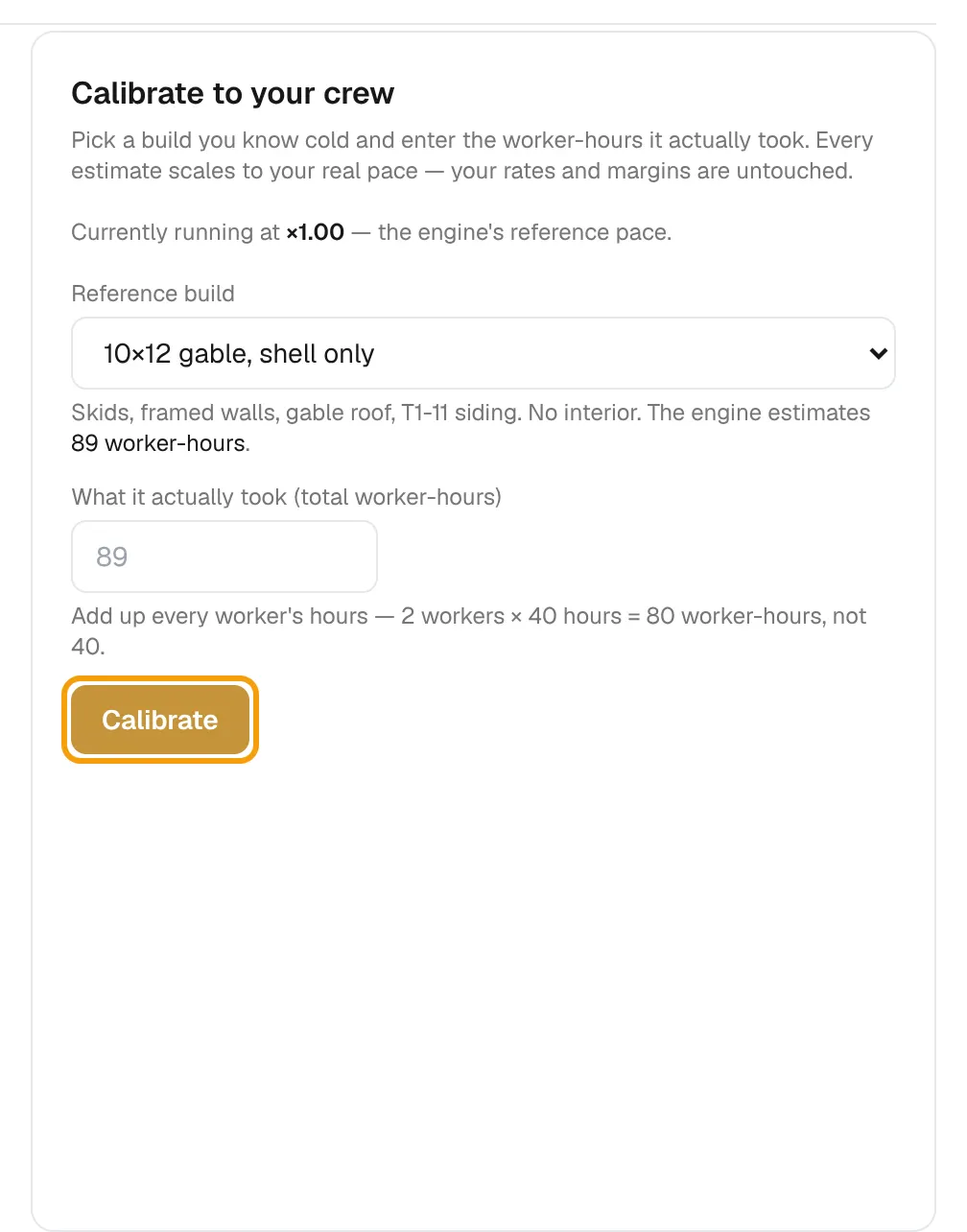
The engine estimates hours at a reference pace. Calibration scales every estimate to how fast your crew really works. Your rates and margins do not change.
- In Calibrate to your crew, pick a Reference build you know well.
- Enter What it actually took (total worker-hours). Add up every worker's hours: 2 workers for 40 hours is 80.
- Select Calibrate. The card shows the factor your crew runs at.
When your recent completed jobs suggest a new factor, the card offers a Use × button to apply it.
Set a default payment schedule
In Default Payment Schedule, add milestones with + Add milestone. Each needs a percent, a label and a due trigger, and the percents must total exactly 100%. Select Save Settings.
Override one project
- Open the project and select the Settings tab.
- In Crew Pricing Override, fill in only what differs: Cost per Worker-Hour ($), Management Fee (%), Profit Margin (%), Crew Size or Crew Calibration (×). Blank fields use the workspace default.
- Select Save Settings.
See the result in the Cost tab: Read the estimate and cost breakdown.