Every estimate prices materials from a price list. The Pricing tab in Settings shows that list and lets you replace any price with what you actually pay.
When to use it
- Your supplier's price for a material differs from the suggested one.
- Prices look out of date and you want a fresh pull for your area.
Check your pricing source
- Select Settings in the sidebar, then the Pricing tab.
- The Pricing source card shows your Default retailer and Metro region.
- Select Refresh now to pull live prices for your metro.
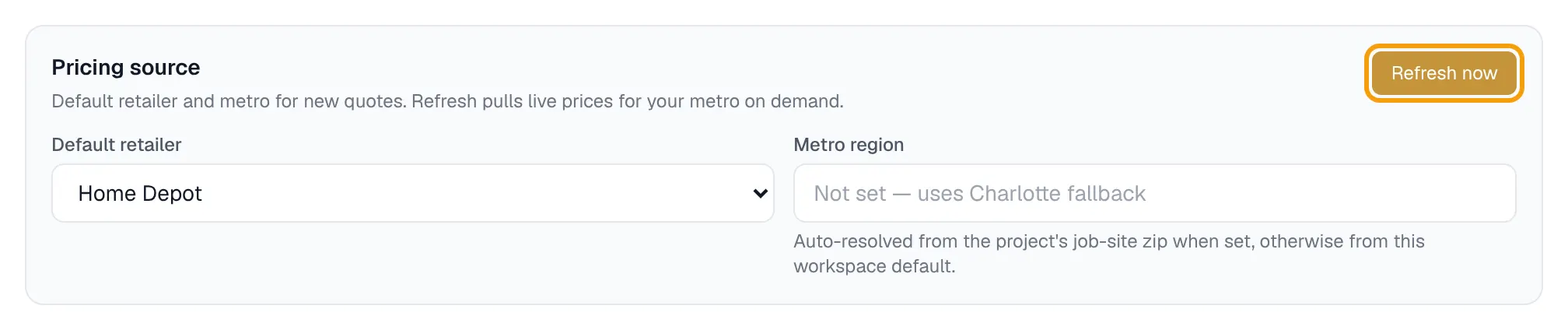
Home Depot is the only retailer you can pick today. Lowe's, Best Price and Both are listed as coming soon.
The metro comes from the project's job-site zip when it has one, otherwise from the workspace default.
Override a price
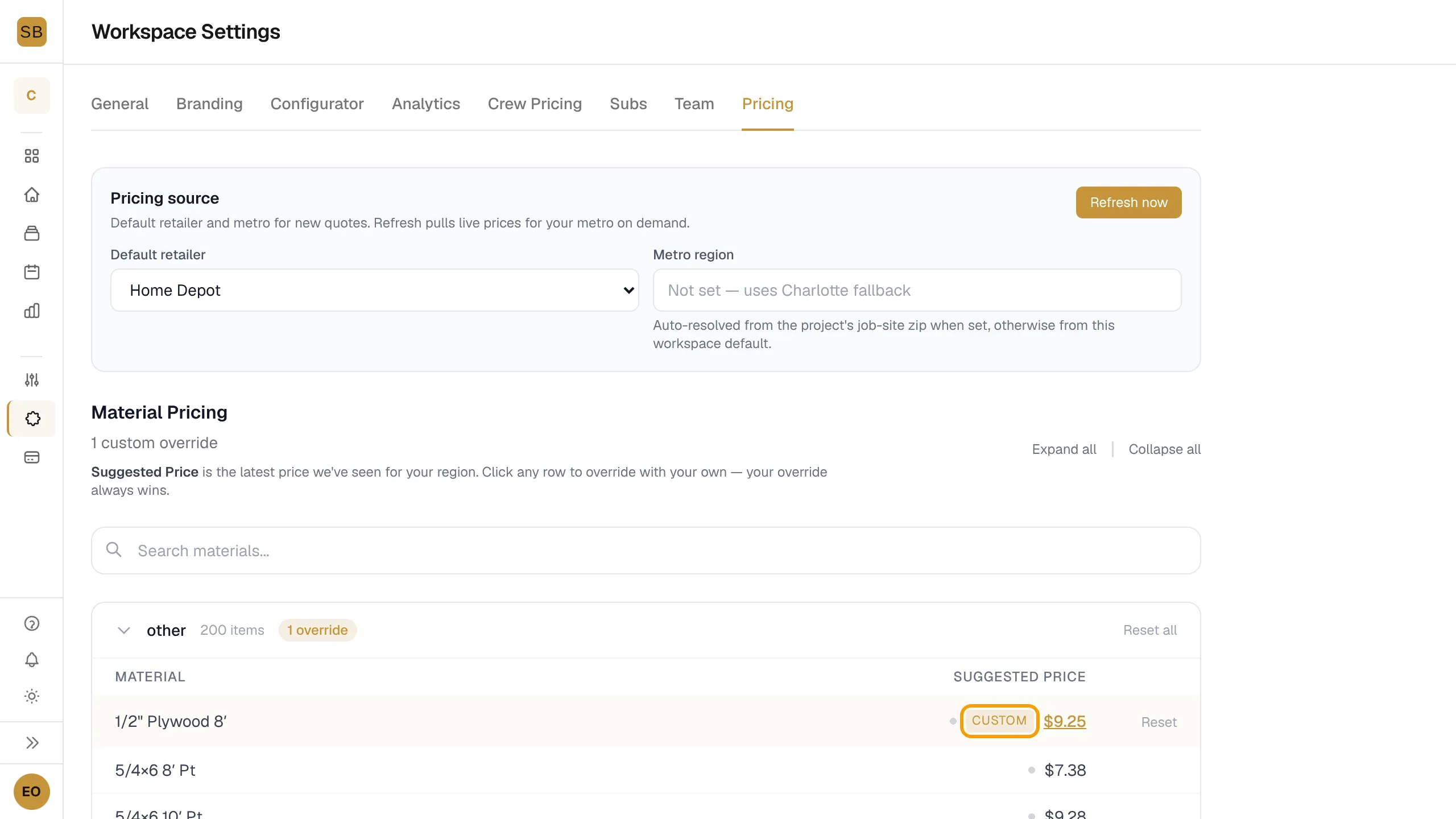
- Under Material Pricing, open a category, such as Framing Lumber or Roofing. Use Search materials... to find one item.
- Select the price in the Suggested Price column.
- Type your price and press Enter, or select the check mark.
- The row now shows a custom tag. Your override always wins over the suggested price.
Undo an override
- Select Reset on the row to go back to the suggested price.
- Select Reset all on a category header to clear every override in it.
Price freshness
A coloured dot beside each price tells you where it came from, such as Verified, Current, National median, Stale, Low confidence or Default. Hover the dot for details.
To see how these prices flow into a quote, read Read the estimate and cost breakdown.