The designer groups its views into three workspaces. You switch between them with the workspace switcher in the top bar.
The three workspaces
| Workspace | Tabs | Use it to |
|---|---|---|
| Design | 3D, 2D Plan | Shape the building and see it. |
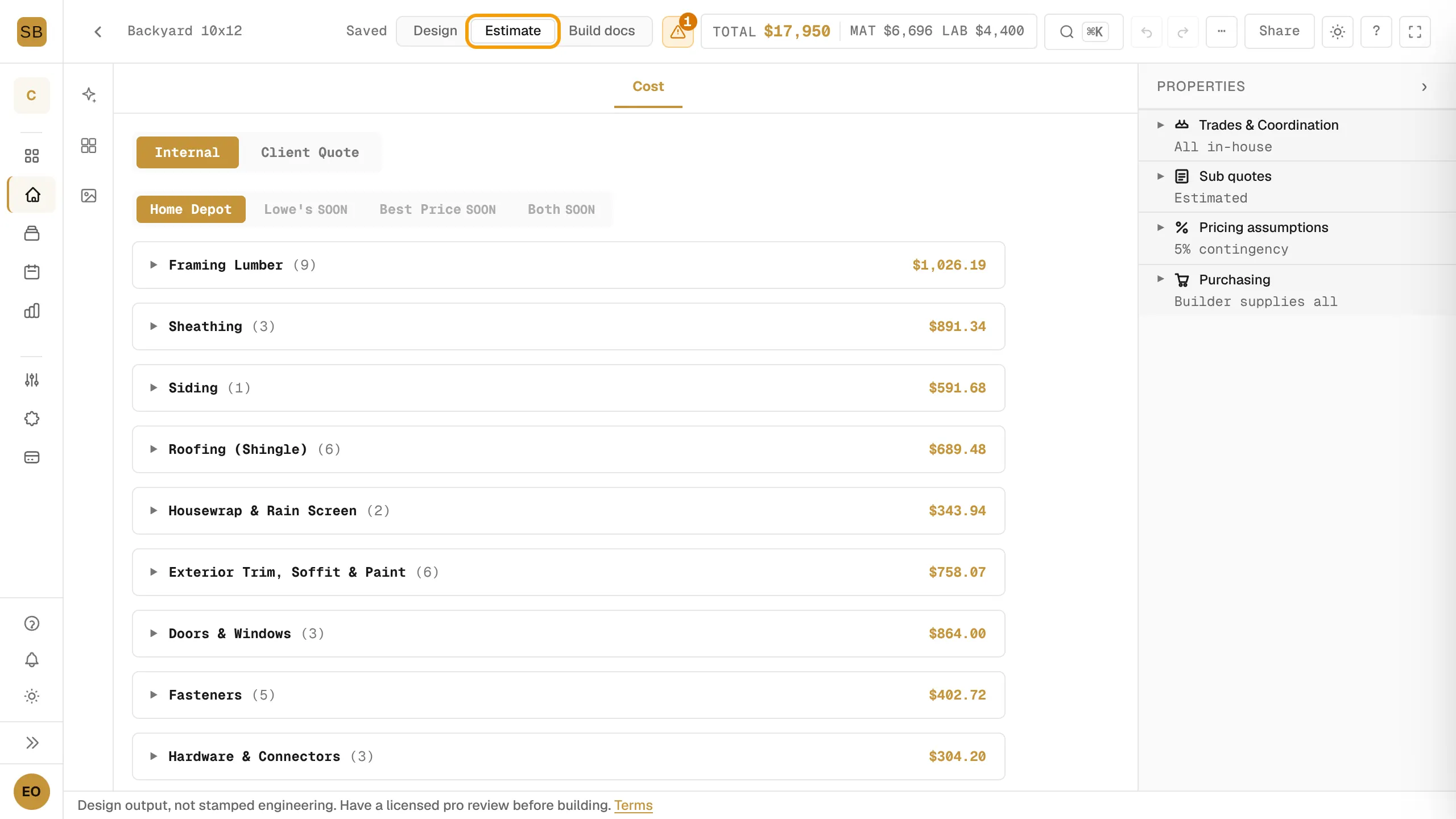
| Estimate | Cost | See the priced materials list. |
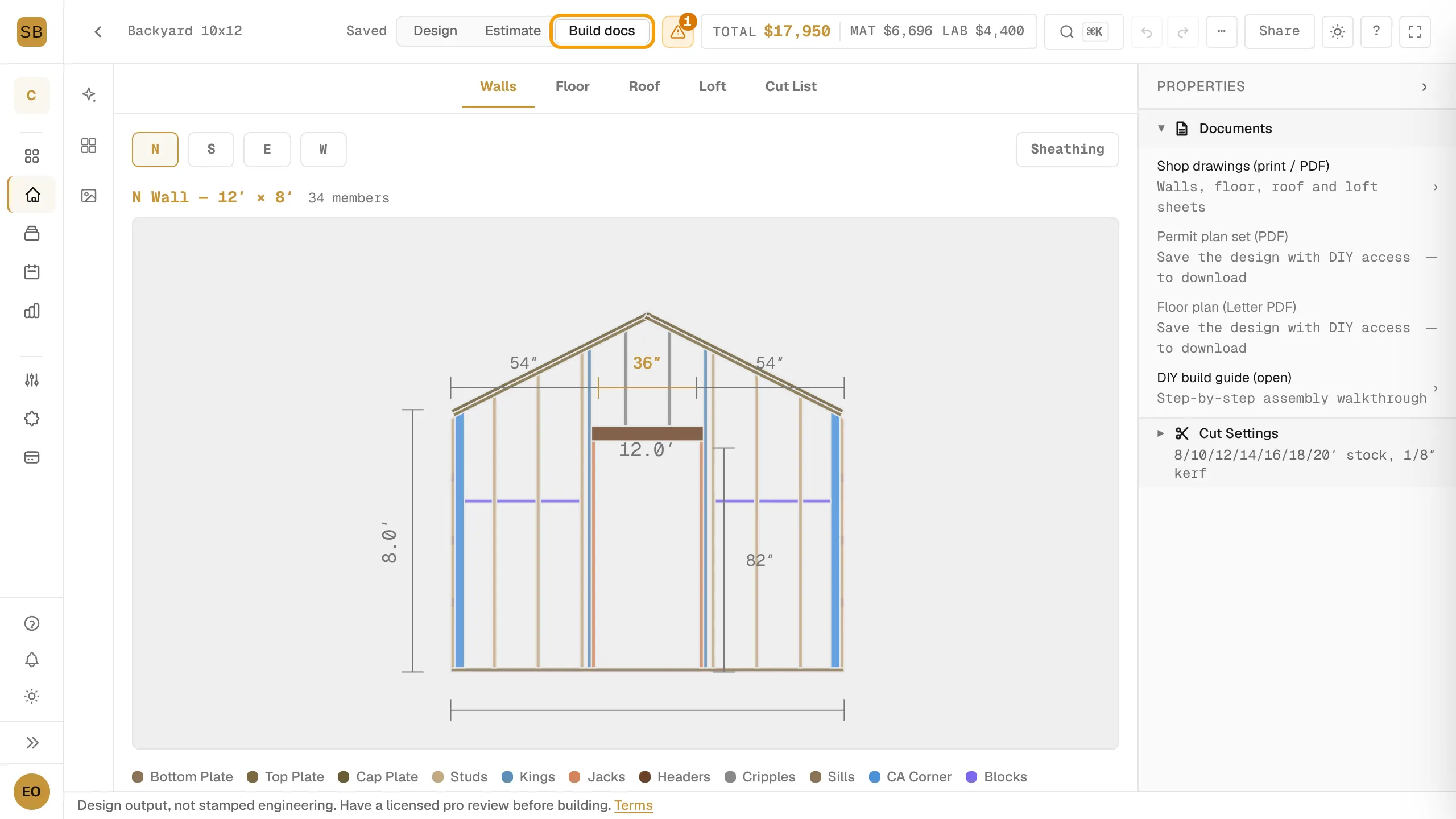
| Build docs | Walls, Floor, Roof, Loft, Cut List | Read the drawings you build from. |
Each workspace has its own properties panel on the right. Design shows Build, Openings, Interior, Exterior and Site. Estimate and Build docs show the settings that shape their own output.
Switch workspaces
- Find the workspace switcher in the top bar: Design, Estimate, Build docs.
- Select a workspace.
- Pick a tab across the top of the drawing area.
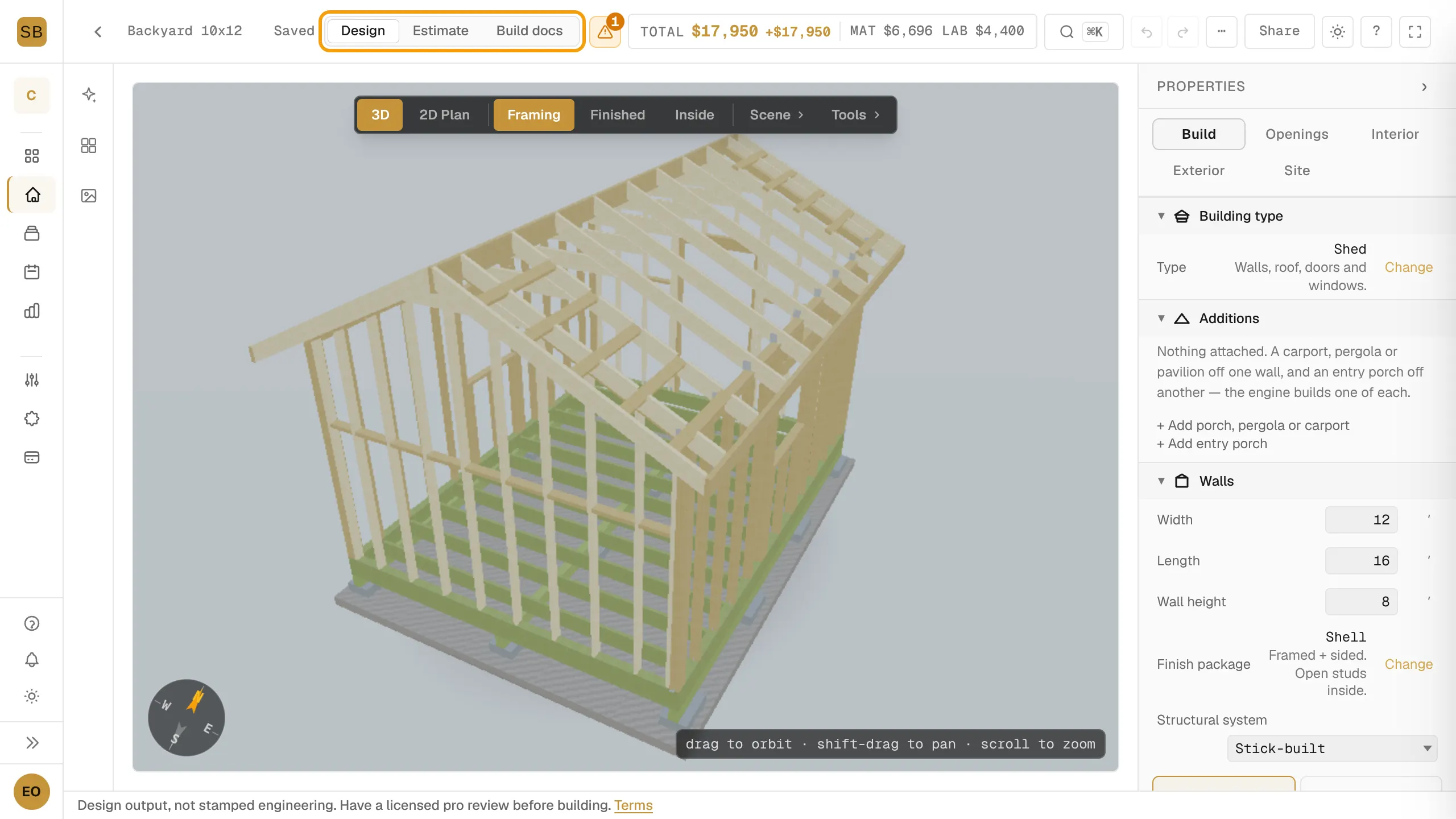
Design
In Design, the 3D and 2D Plan switch is the left part of the floating toolbar over the 3D view. On a phone it is a strip under the workspace switcher. See Use the 3D view.
The 2D Plan shows dimensions once your build documents are unlocked. A builder on an active trial also sees them.
Estimate
Cost is the priced materials take-off. Changing the design changes the list. See Read the estimate and cost breakdown.
Build docs
Cut List holds the cut diagrams. Its settings, stock lengths, kerf and minimum offcut, are in the properties panel. Changing them changes the buy list. See Get drawings and the plan set.
Use more of the screen
Select the fullscreen button at the right of the top bar to hide the navigation and the properties panel. Press F to do the same. Press Esc or select the button again to leave.
On a phone
A bar along the bottom of the screen holds Drawing views, a button to open the chat, and a button to open the properties panel.