Help lives in the designer's ? menu and in the support button on the dashboard. This article covers the tour, the build guide, the command palette, keyboard shortcuts and support.
The ? menu
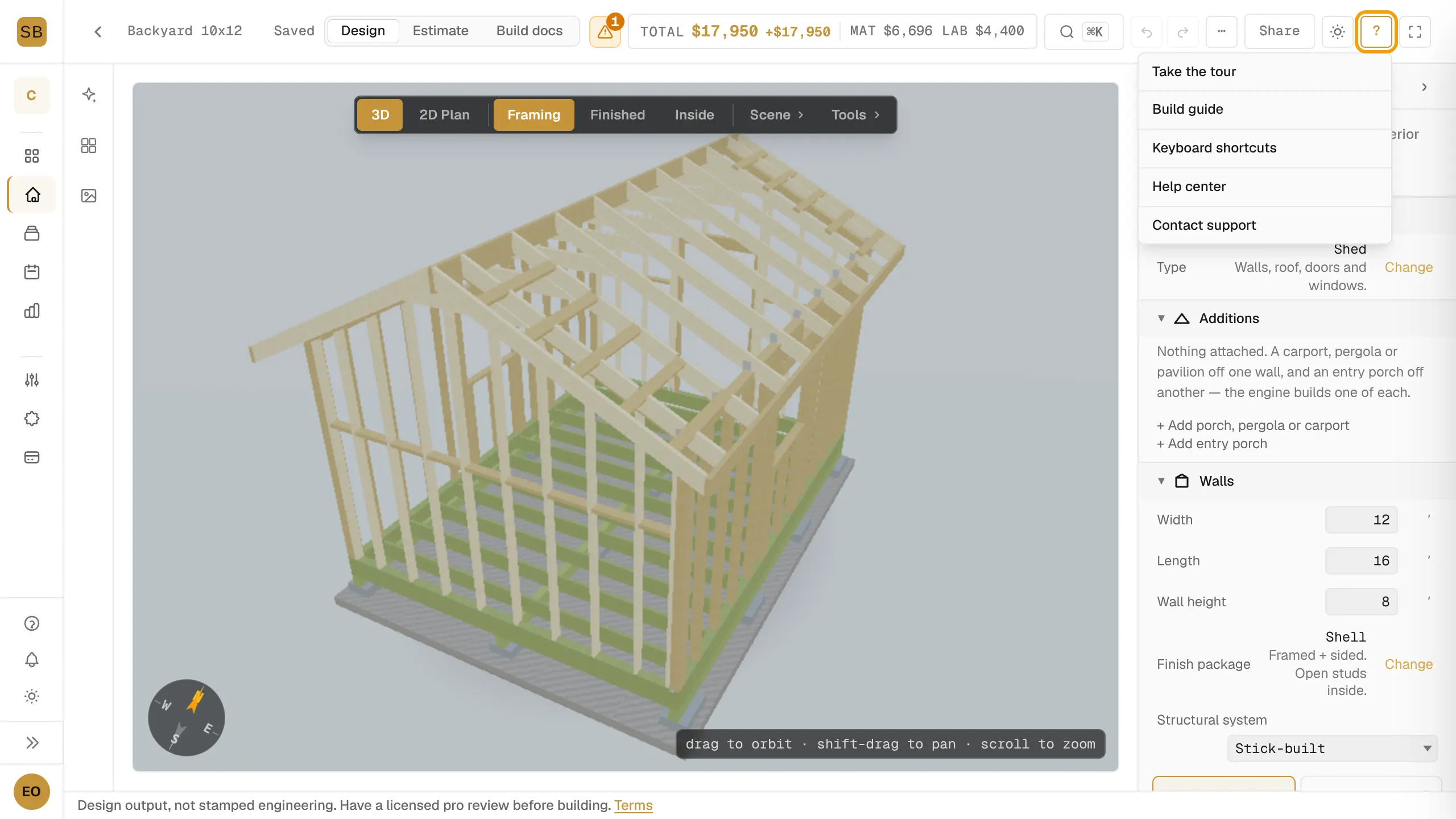
The ? button sits in the designer's top bar. It has four items: Take the tour, Build guide, Keyboard shortcuts and Contact support.
On a narrow screen there is no ? button. The same four items are at the bottom of More actions (⋯).
Take the tour
The first time you open the designer, a welcome window offers Take the 90-second tour or Skip and explore.
The tour points at the chat, the workspace switcher, placing items on a wall, dragging openings, the inspector, the cut list, the alerts button and the build guide. Builders also get a step on sending the design as a quote.
To replay it:
- Select ? in the designer.
- Select Take the tour.
You can also replay it from Account Settings under Help & Onboarding with Replay tour.
Open the build guide
Select ?, then Build guide. It walks through building your design step by step. See Follow the step-by-step build guide.
Search commands
Press ⌘K on a Mac or Ctrl K on Windows, or select the search button in the designer's top bar. Type to search, then press Enter.
The palette can:
- go to a tab, such as Go to 2D Plan or Go to Walls
- apply a quick size change, such as
10x14 - open or create a design
- jump to a section of the properties panel
Keyboard shortcuts
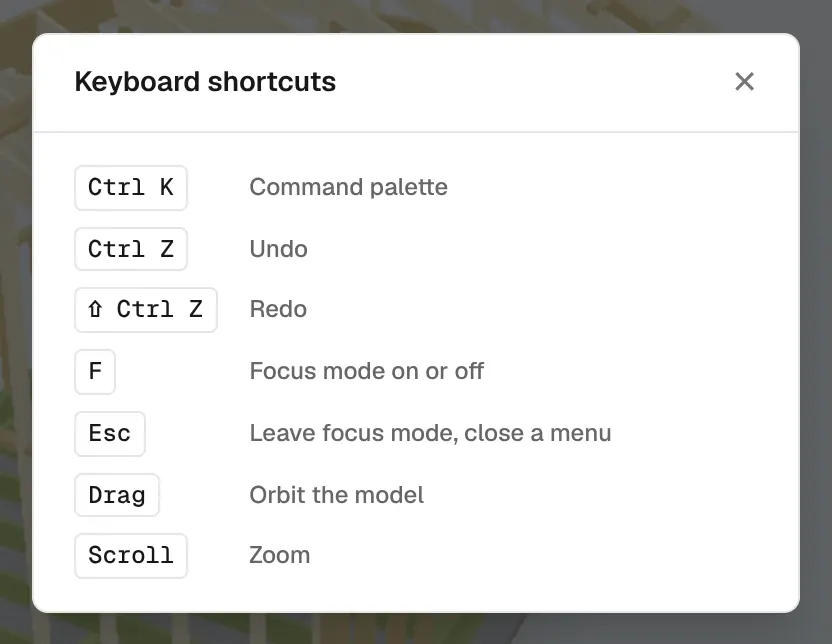
Select ?, then Keyboard shortcuts, to see the list.
| Keys | What it does |
|---|---|
| ⌘ K | Command palette |
| ⌘ Z | Undo |
| ⇧ ⌘ Z | Redo |
| F | Focus mode on or off |
| Esc | Leave focus mode, close a menu |
| Drag | Orbit the model |
| Scroll | Zoom |
On Windows, use Ctrl in place of ⌘.
Contact support
- In the designer, select ?, then Contact support. On the dashboard, select the Contact support button in the top bar or sidebar.
- Type your question under What can we help with?.
- Select Send.
We reply to your account email. You can also email the address shown in the window.