When a homeowner sends their design out to bid, invited builders get an email with a link. You price the job with your own numbers and submit a bid. The homeowner compares bids and picks a builder.
Claim the lead
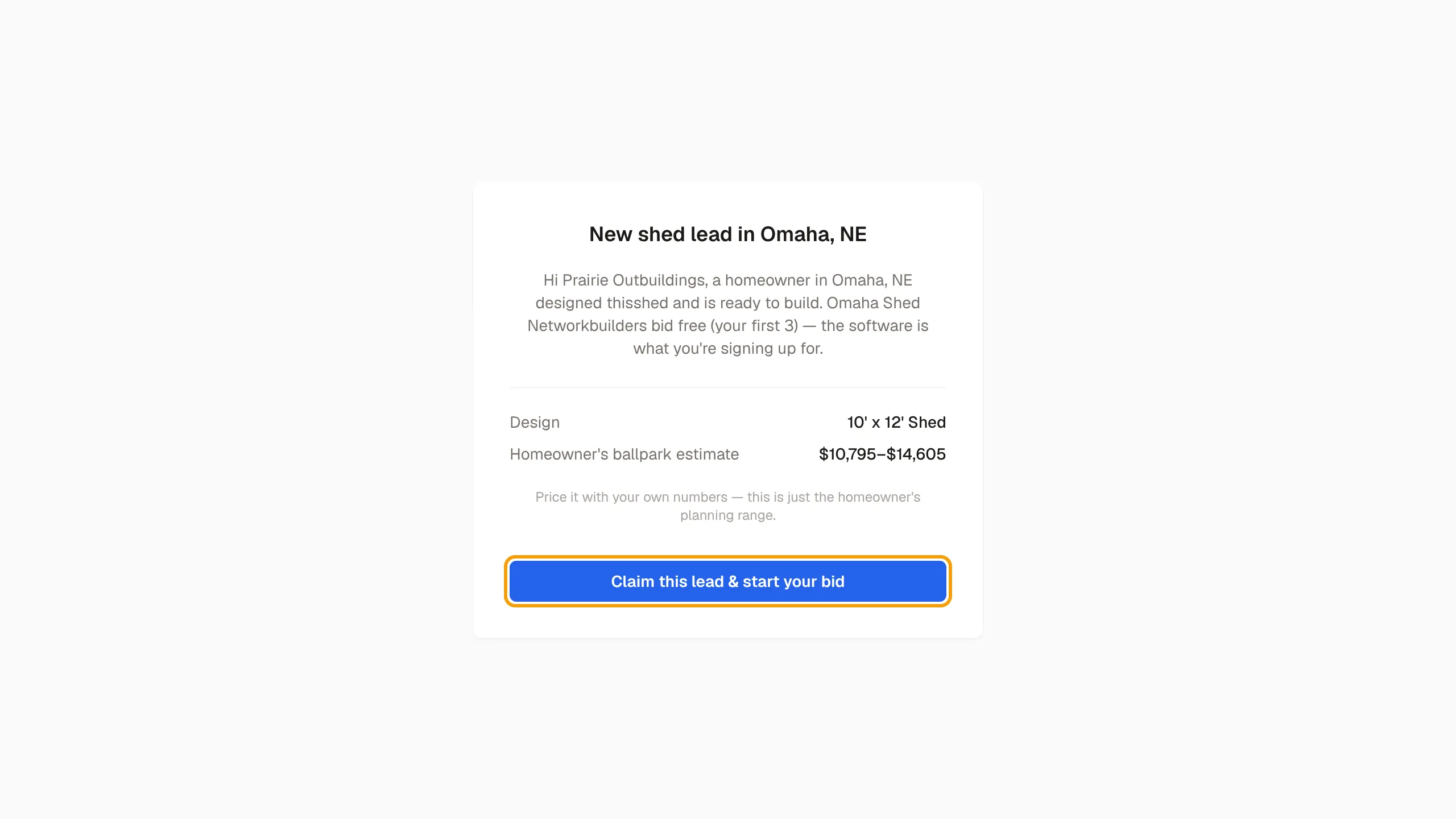
- Open the link in your invite email. The page shows the design, the homeowner's timeline and, if given, the homeowner's ballpark estimate.
- If you are not signed in, enter your email and select Claim this lead & start your bid. Open the sign-in link we email you. It brings you back to this page.
- Signed in, select Claim this lead & start your bid.
- The lead opens as a project in your workspace. If you don't have a workspace yet, one is set up for you.
If the page says This link is no longer valid, the invite has expired, was already claimed, or the link is wrong.
Submit your bid
Your bid amount comes from your latest quote total.
- Open the project and build a quote on the Quote tab. See Create and send a quote.
- In Submit bid, check Latest quote total.
- Select Submit bid to homeowner.
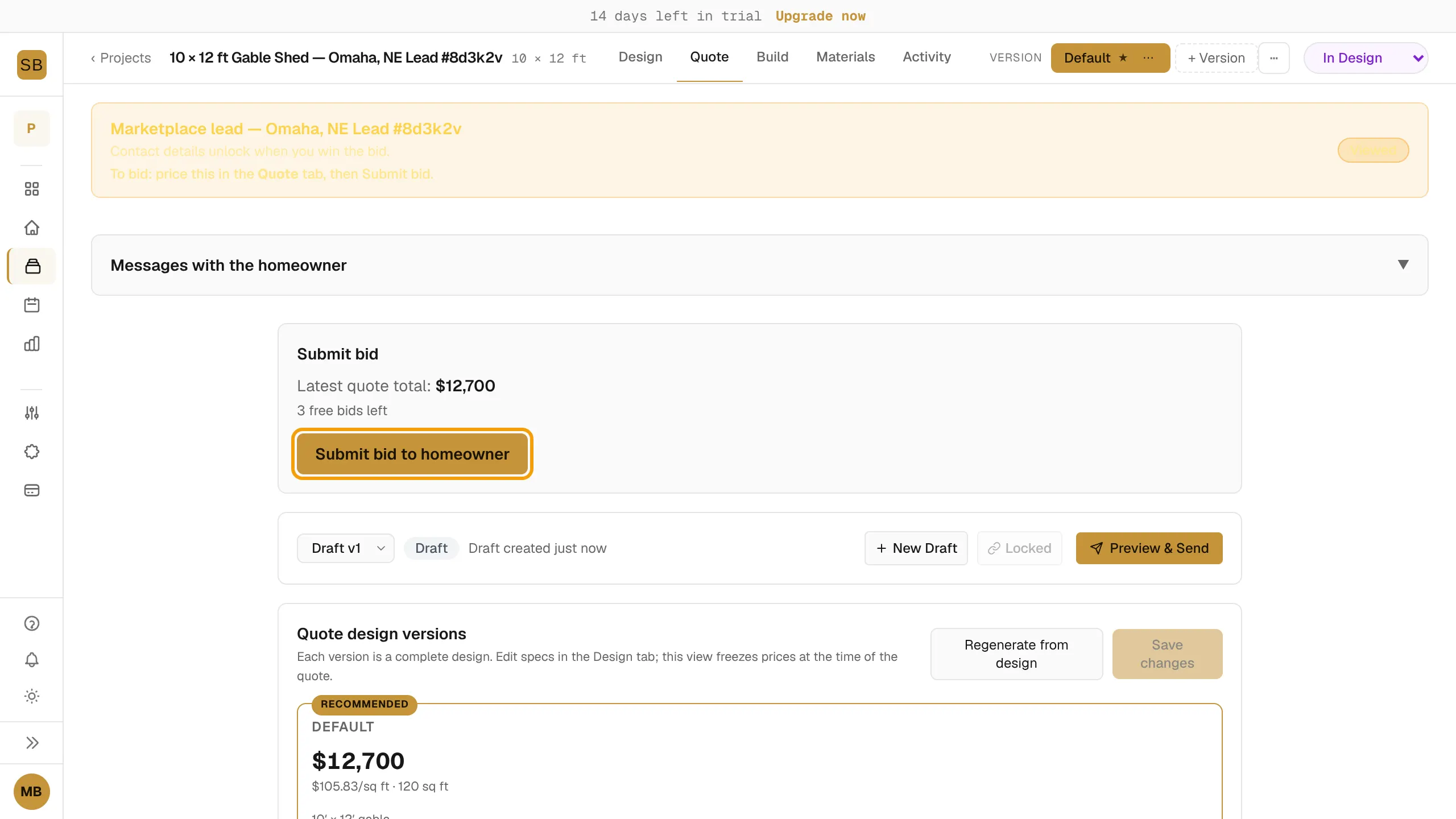
To change your bid, update the quote and select Resubmit bid to homeowner. The bid takes your latest quote total.
Free bids
Your first 3 bids are free. The panel shows how many free bids you have left. After that, you need a paid Builder or Pro subscription to keep bidding. Select Upgrade to Builder to subscribe. A free trial does not count as a paid subscription here. See Choose a plan and manage billing.
Message the homeowner
- Open the project. Messages with the homeowner sits above the tabs.
- Type in Write a message… and select Send.
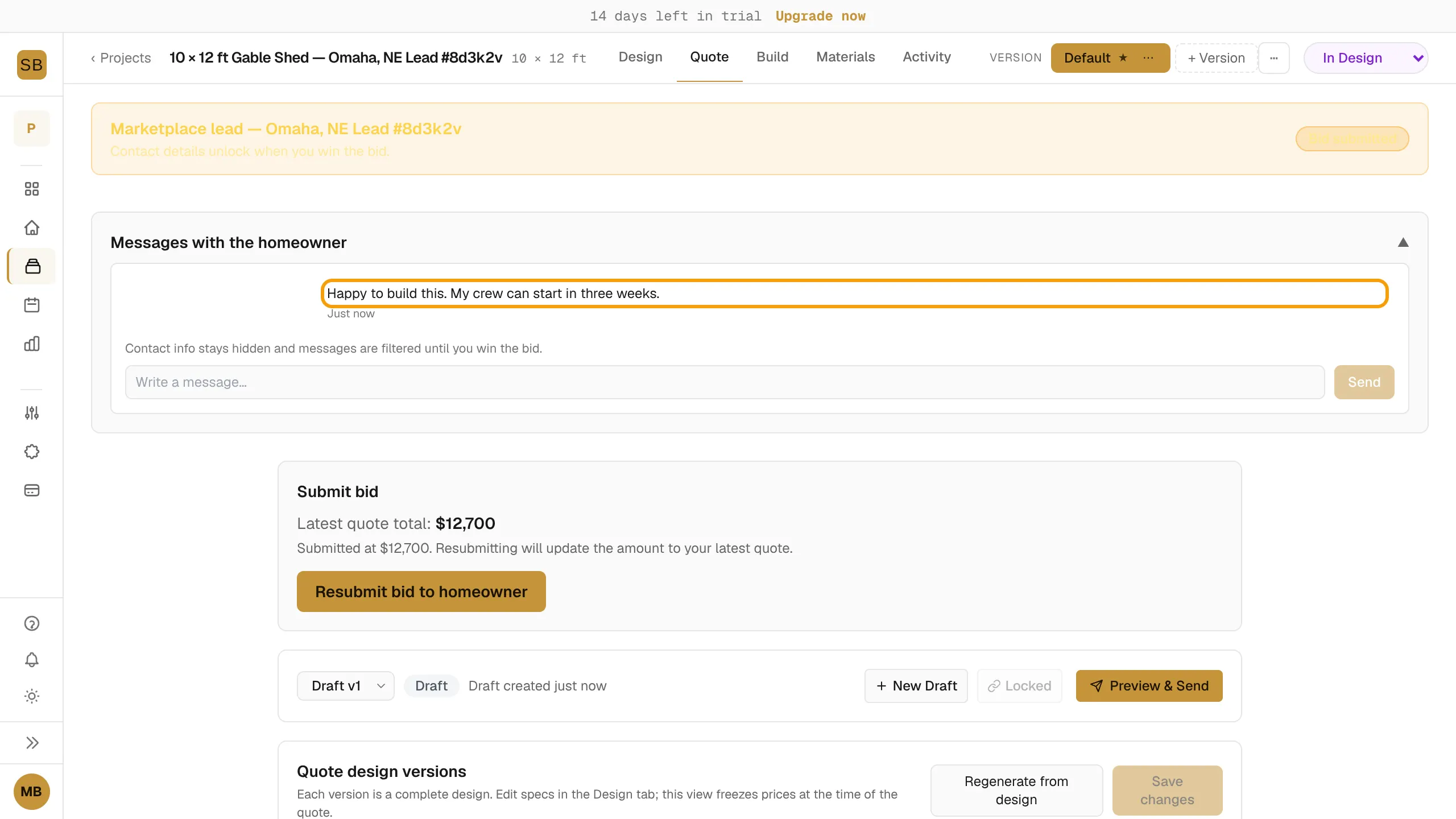
Contact details stay hidden and messages are filtered until you win the bid. If you lose the bid, the thread becomes read-only.