A saved design saves itself as you work. This article covers the save status, undo and redo, copies, and the designs list.
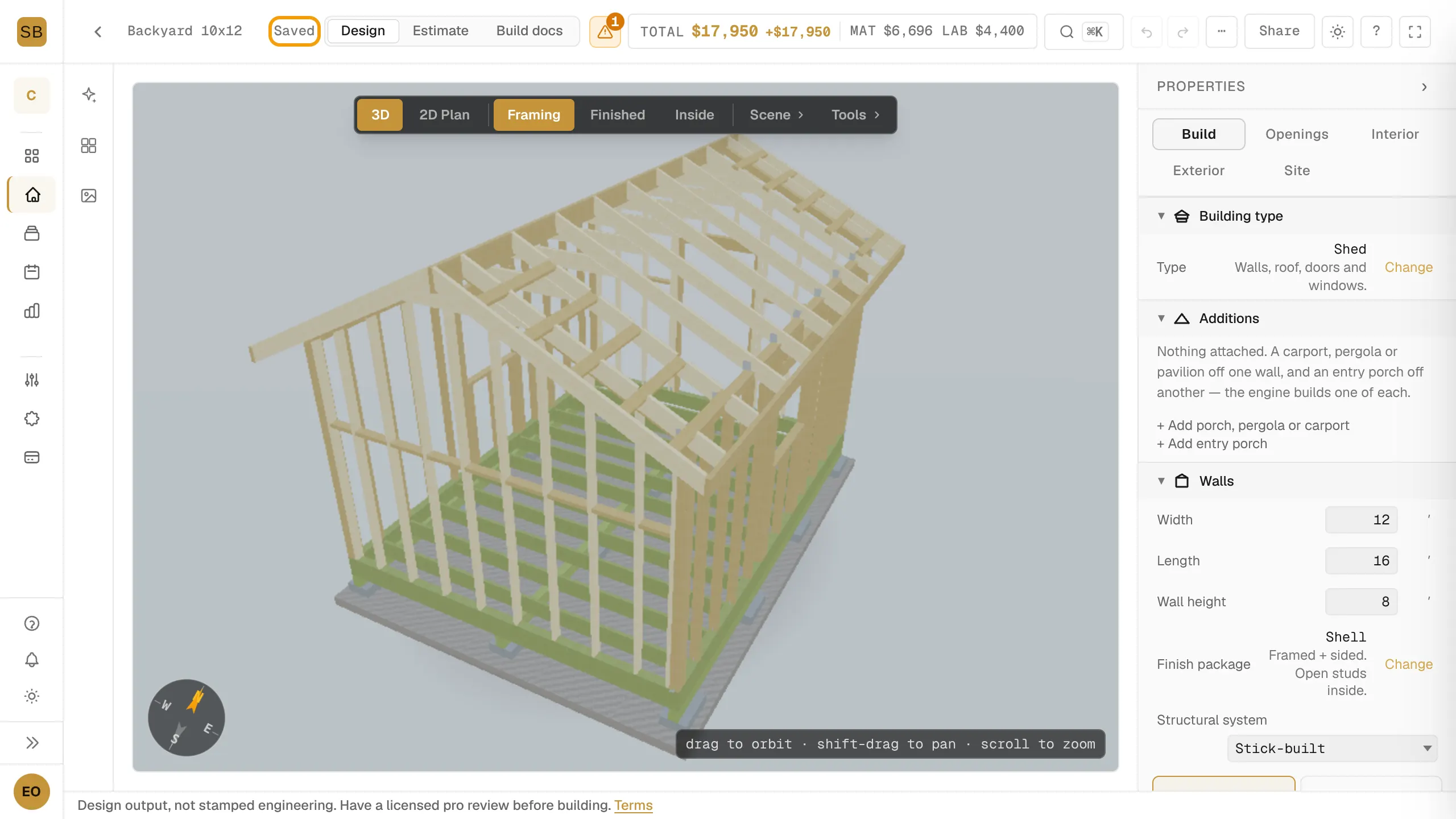
Save status
The top bar shows where your changes are:
| Status | Meaning |
|---|---|
| Unsaved changes | Your edit is made here but not sent yet. |
| Saving… | Your edit is on its way. |
| Saved | Everything is stored. |
| Sync failed | The save did not go through. Select Retry. |
| Draft | A guest design kept in this browser. Select Save to keep it. |
For guest drafts, see Start designing your own shed.
Undo and redo
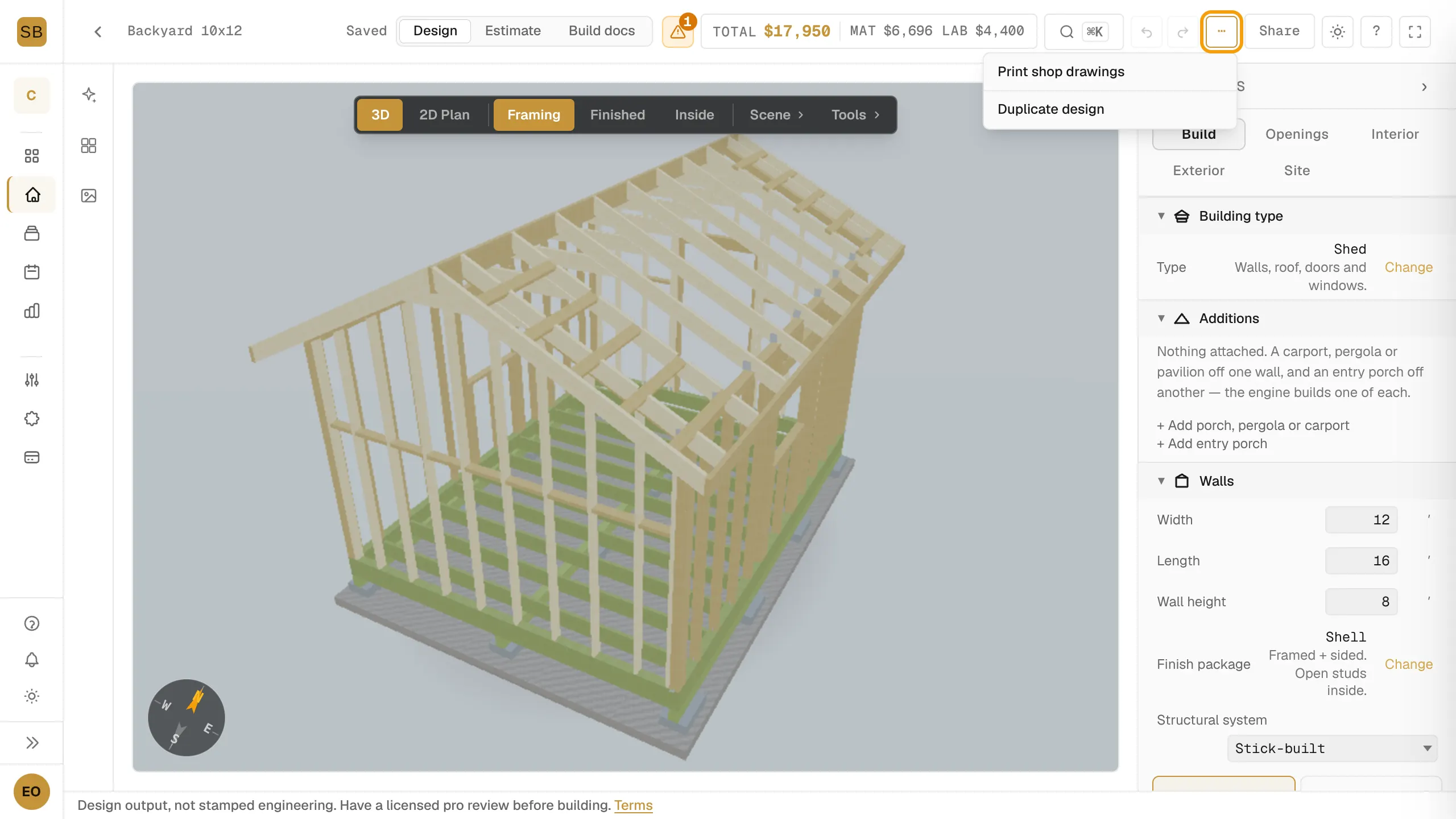
Select Undo or Redo in the top bar, or press ⌘Z and ⇧⌘Z (Ctrl Z and Shift Ctrl Z on Windows). On a narrow screen they are under More actions (⋯). Changes the AI chat makes can be undone the same way.
If the design changed elsewhere
If another tab, device or teammate saved this design after you opened it, you see This design was changed elsewhere.
- Reload replaces your edits with the latest saved version.
- Fork as new design keeps your edits as a new design. The other version is not touched.
- Cancel keeps editing here. The next save hits the same conflict.
Duplicate the open design
- Select More actions (⋯) in the top bar.
- Select Duplicate design.
The copy is named after the original with "(Copy)" and opens in its place.
The designs list
Select Designer in the sidebar to see your designs. Use the Active, Archived and Templates tabs to filter.
- Select + New Design, enter a Design Name, and select Create.
- Select the pencil next to a name to rename it.
- Select the ⋯ on a row for more:
- Duplicate
- Save as Template, to reuse the design as a starting point
- Archive, and Unarchive from the Archived tab
- Delete
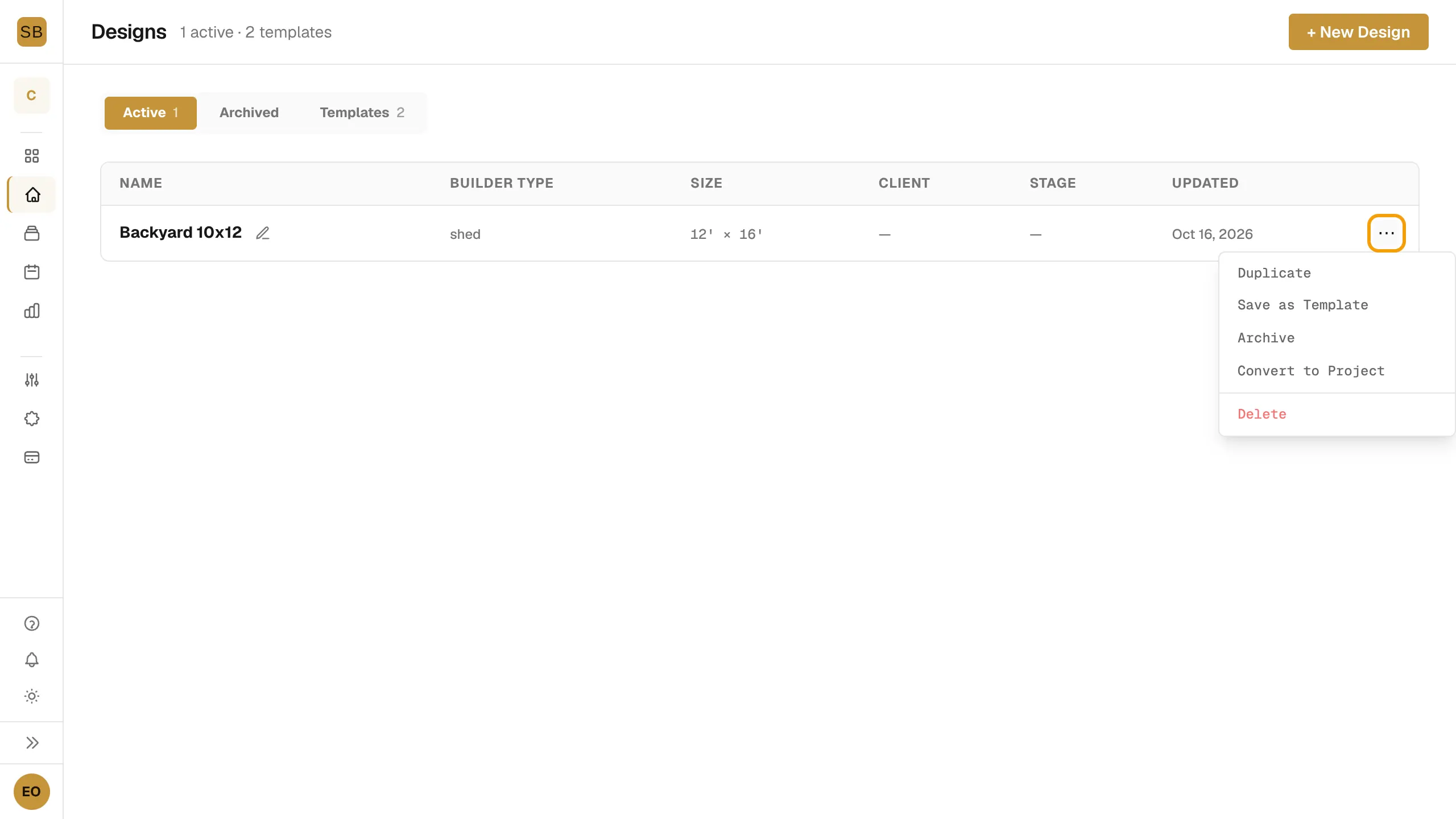
Builders also see Convert to Project, which asks for the Client Name and Client Email and adds the design to Projects. Once converted, the row shows View Project. See Track leads and jobs in Projects.